
Help Center
Learn LADER, one video at a time
Short video walkthroughs for organizers and players. Learn how to run and play in pickleball tournaments, leagues and sessions on LADER, one task at a time.
Organizers: start here
New to LADER?
Every tournament, league and session on LADER is hosted by an organization: your club, association or business. If you're new, start with how to sign up and create your organization. Then watch the full walkthrough for what you're running.
 10:11
Tournaments
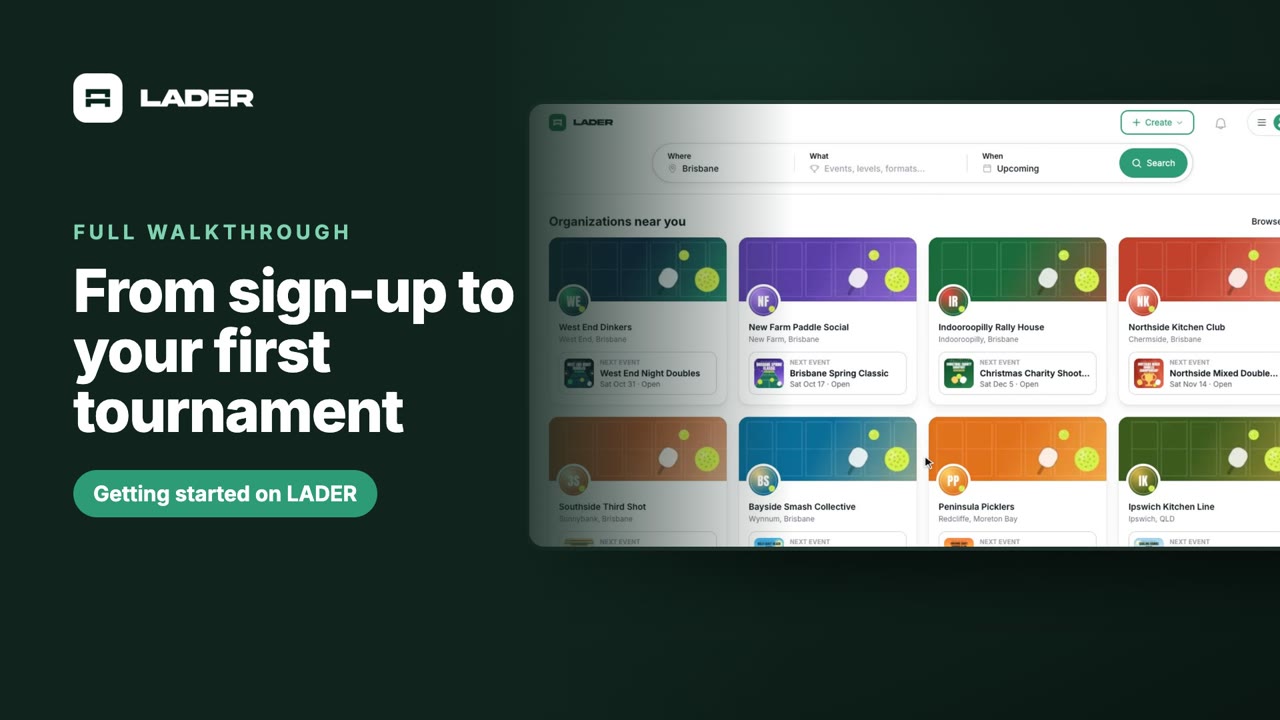
Getting started on LADER: from sign-up to your first tournament
A complete walkthrough for new organizers: sign up, create your organization, connect a payment account, create a tournament, add divisions, set up registration with every add-on, and open registration.
Watch the full walkthrough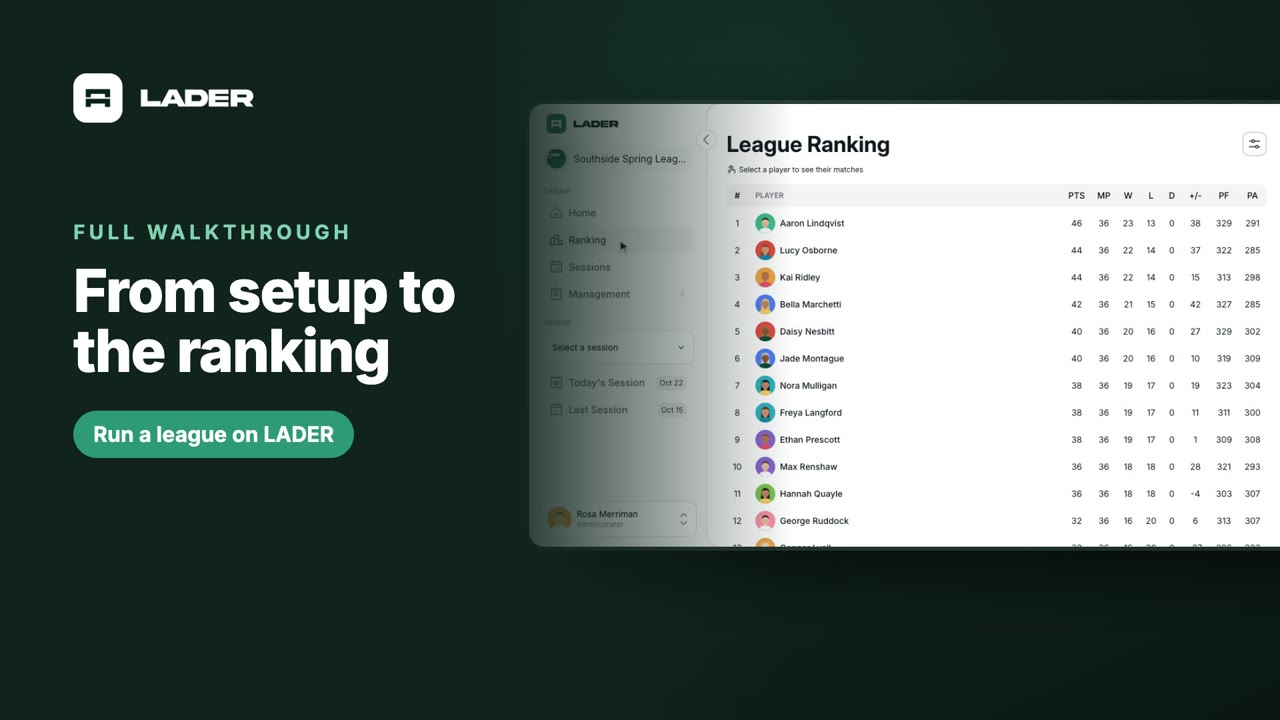 7:15
Leagues
Run a league on LADER: from setup to the ranking
A complete walkthrough for league organizers: create a league and choose who helps run it, add players, schedule the season’s sessions, run a weekly session seeded from the league ranking, and set up the ranking.
Watch the full walkthrough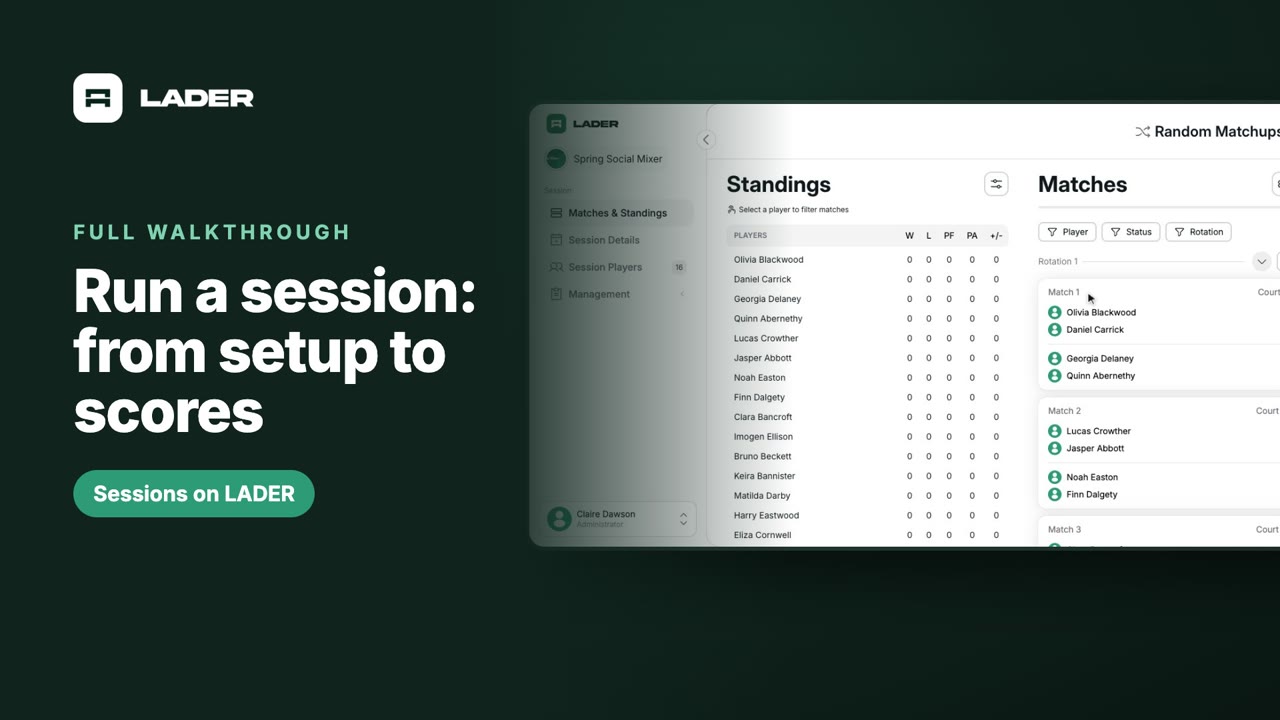 6:24
Sessions
Run a session on LADER: from setup to scores
A complete walkthrough for organizers: create a session, add players, run Random Matchups, enter and lock scores, and run a Ladder with seeds, promotions and new rounds.
Watch the full walkthroughTournaments
For organizers
Getting started
Run your first pickleball tournament on LADER: sign up, create your organization, connect payments, create a tournament, add divisions, set up registration and open it to players. Watch the full walkthrough or jump to the part you need.
Watch the full walkthrough (10:11)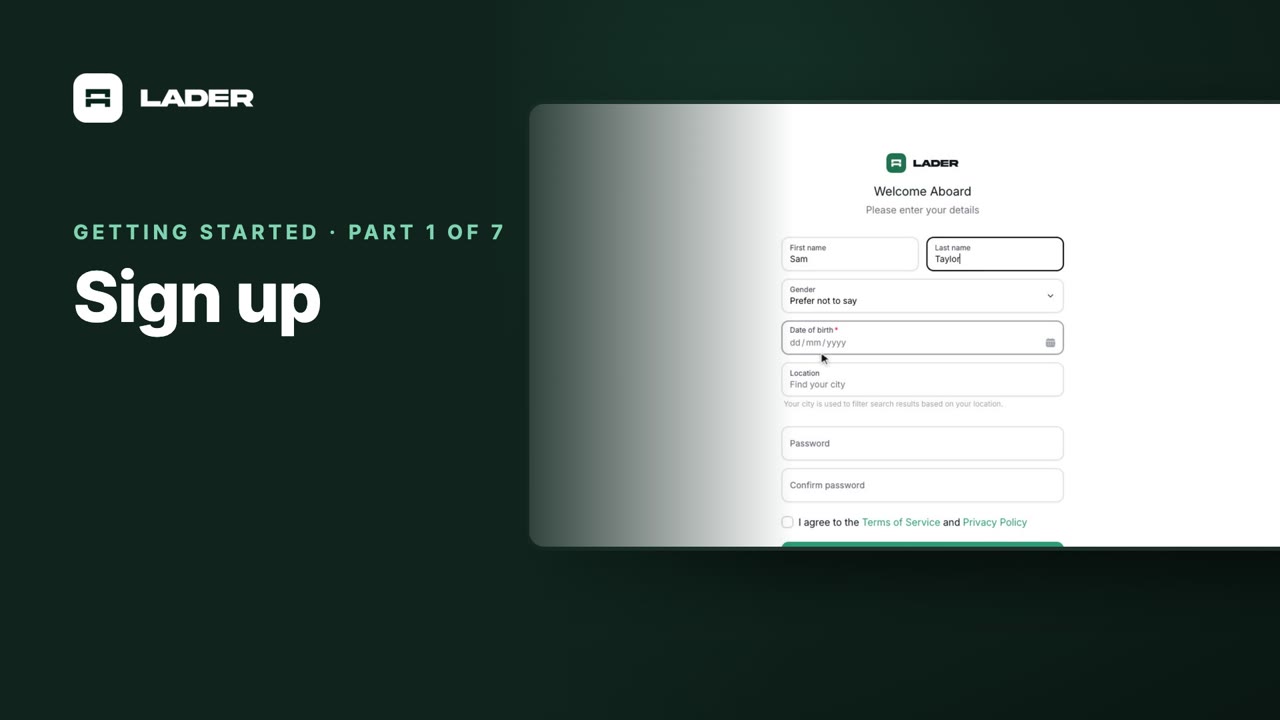 0:53
Part 1
Sign up
Create your LADER account: enter your email, verify it with the six-character code, and add your details.
 1:45
Part 2
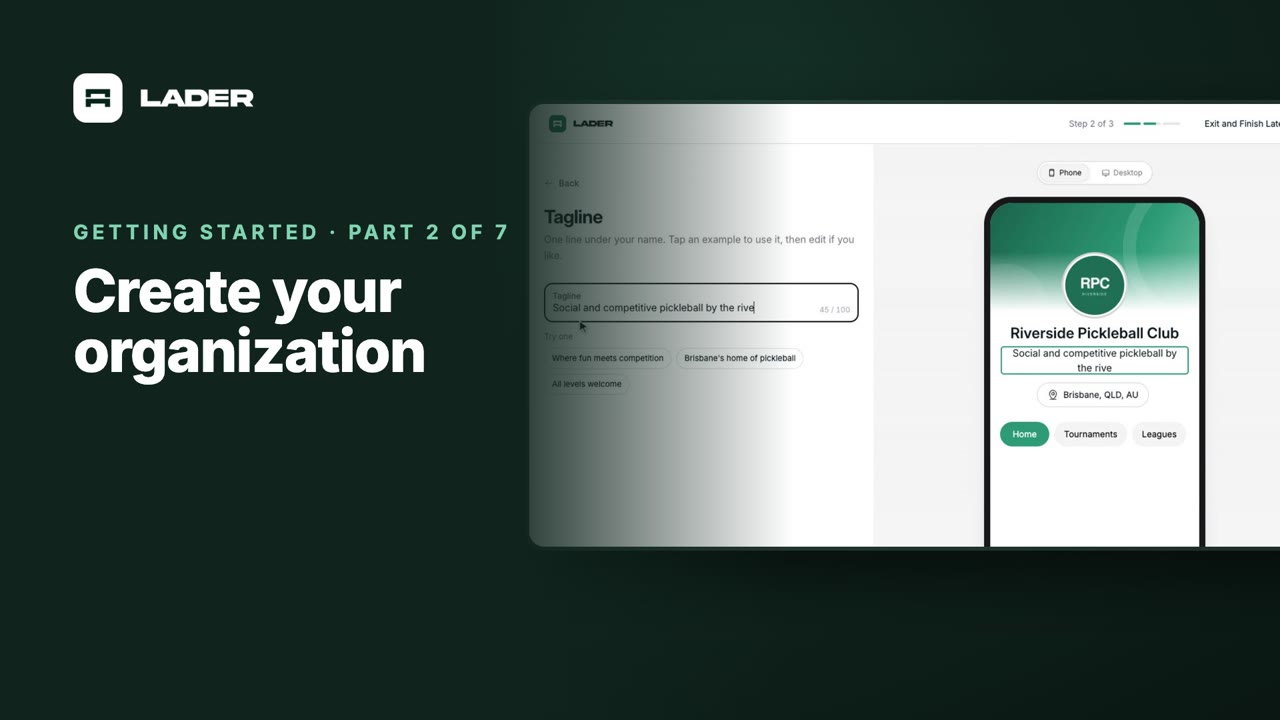
Create your organization
Every tournament is hosted by an organization. Create yours, build its page with a logo, cover and tagline, and choose a plan.
 0:48
Part 3
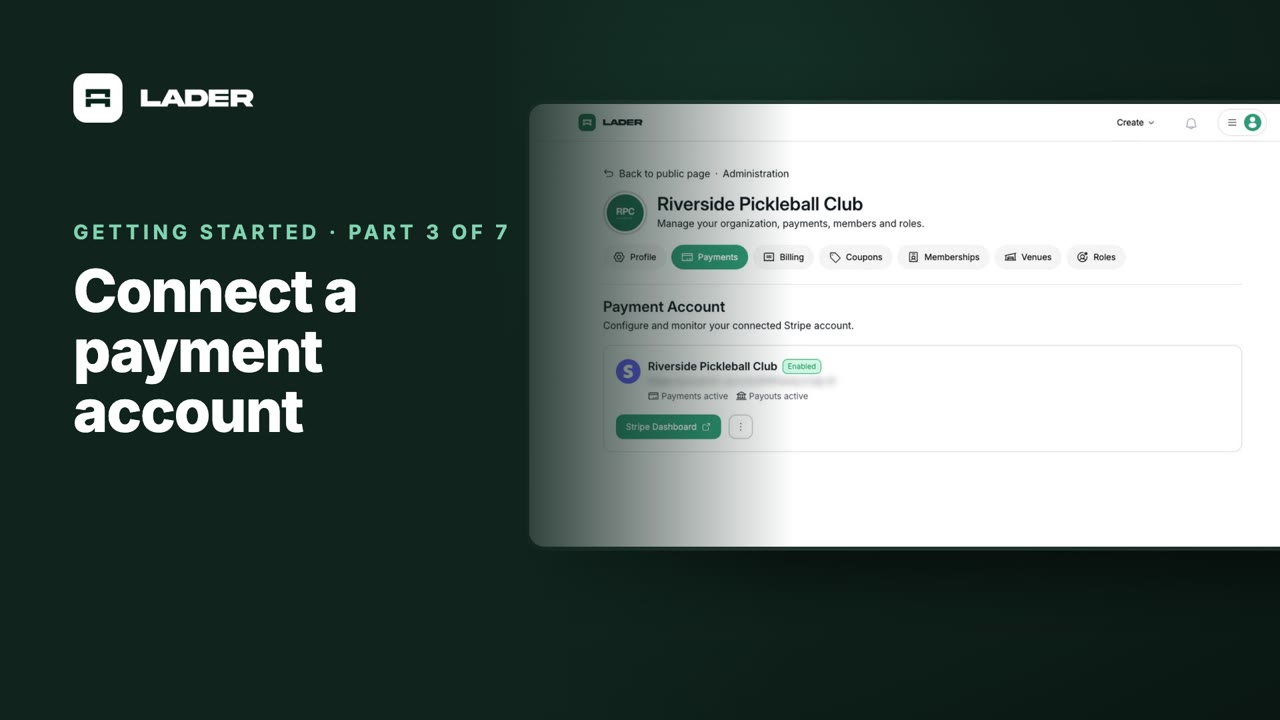
Connect a payment account
Connect Stripe so players can pay when they register. It’s required before registration can open, even for free events.
 1:05
Part 4
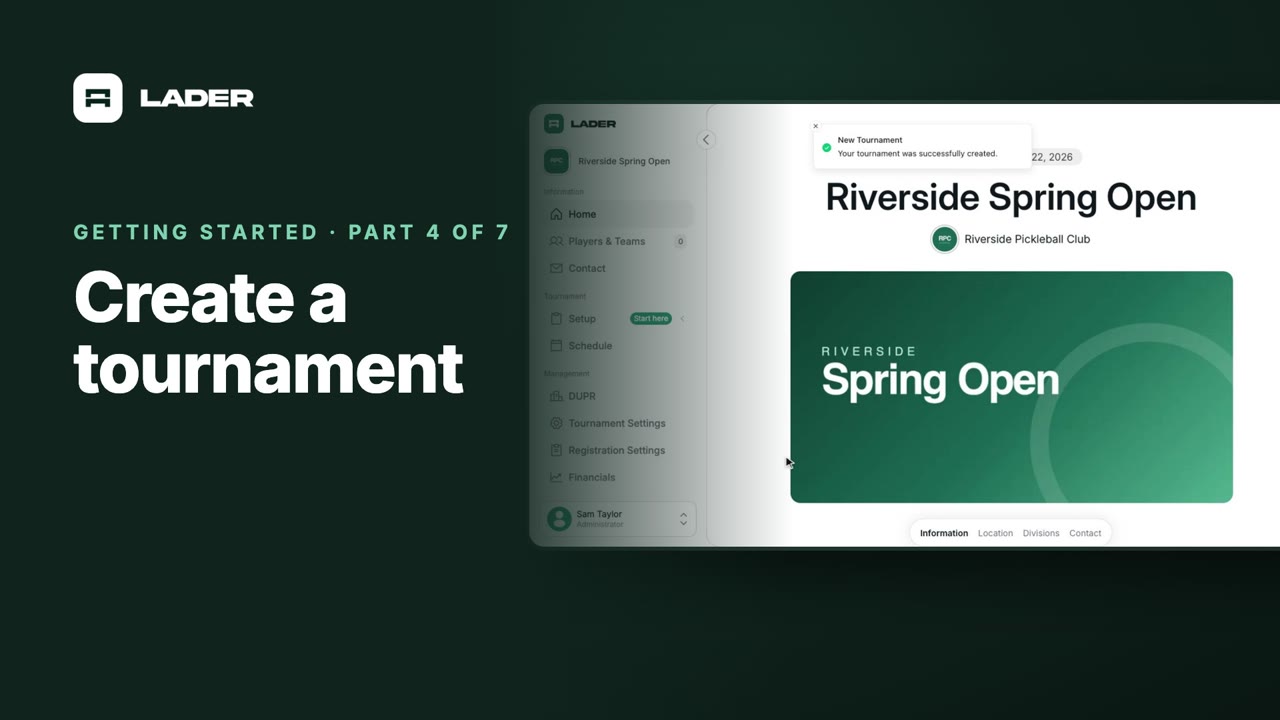
Create a tournament
Create a tournament: name, dates, location, thumbnail and cover images, description, contact details and visibility.
 0:50
Part 5
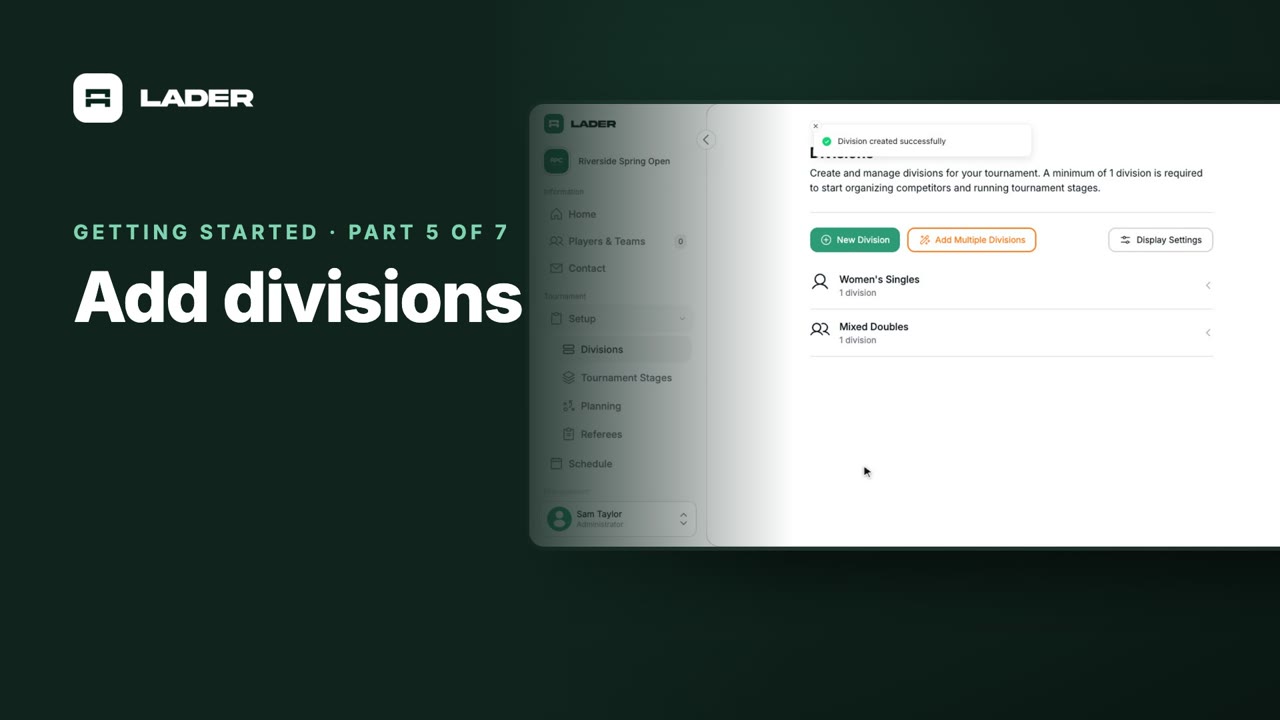
Add divisions
Add the divisions players enter: type, gender, skill level and the number of spots available.
 4:14
Part 6
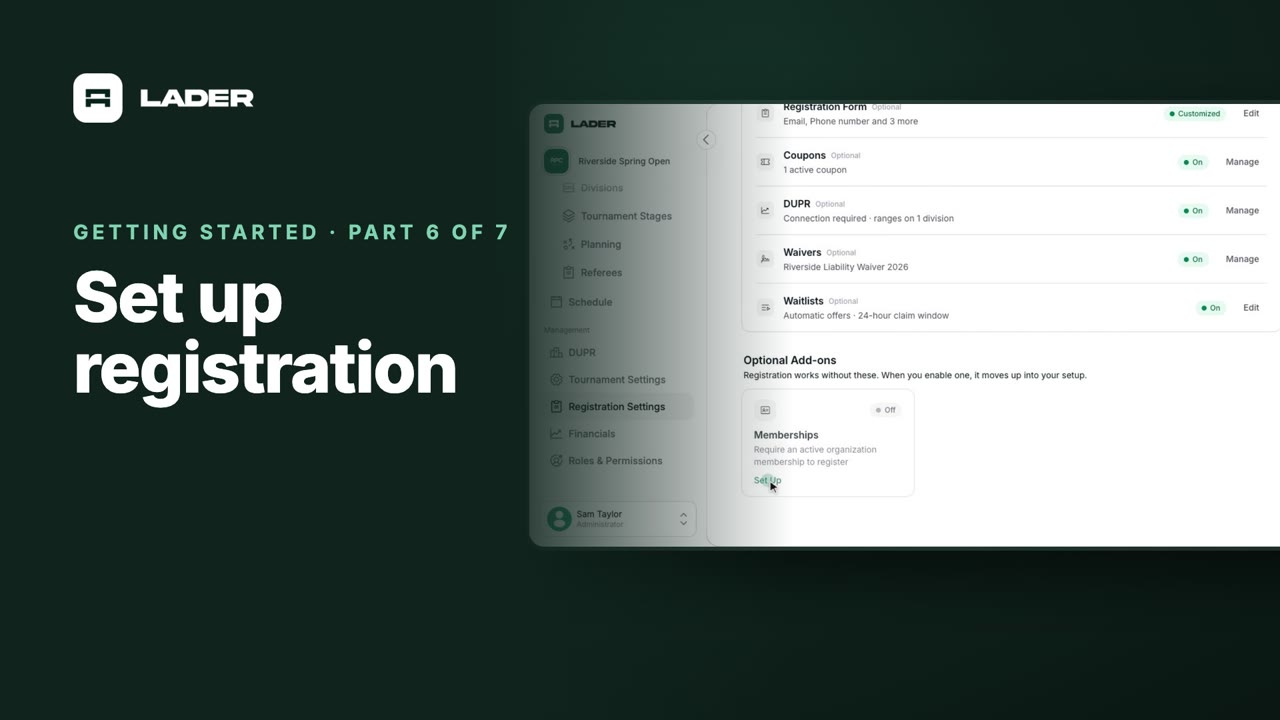
Set up registration
Set up pricing and the registration form, then turn on waitlists, waivers, DUPR, coupons and membership requirements.
 0:47
Part 7
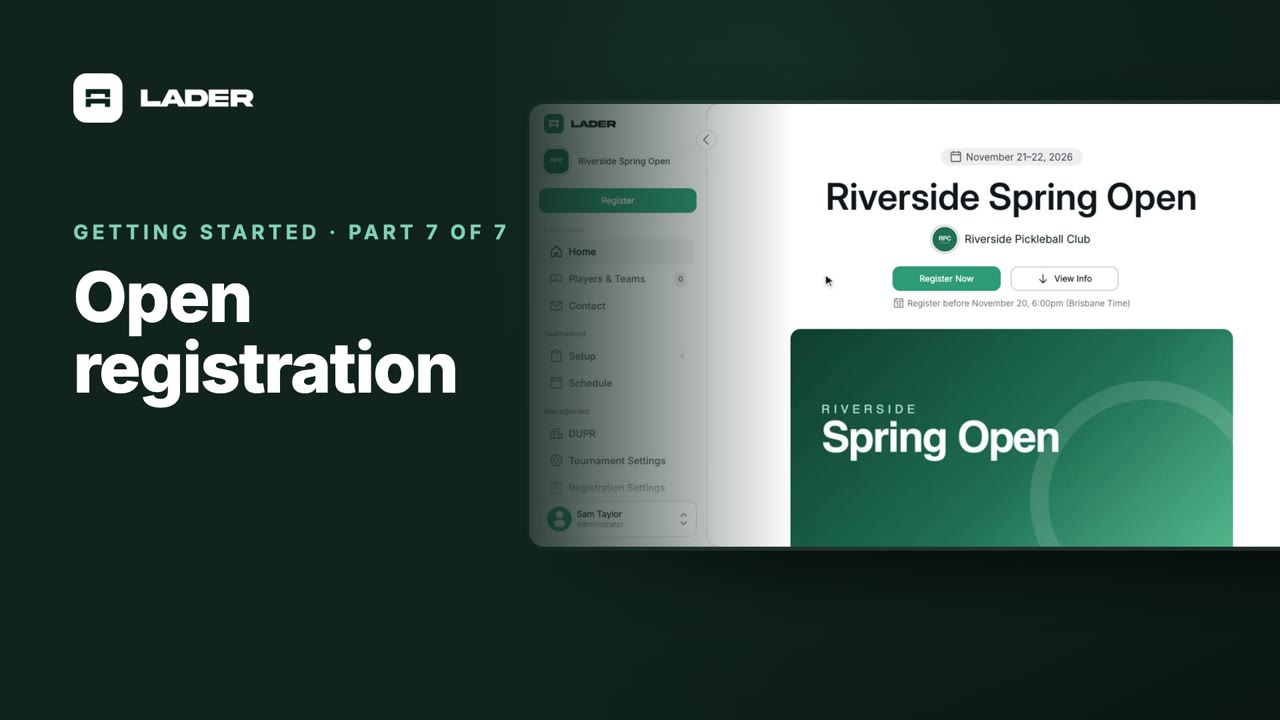
Open registration
Check the registration dates, turn on Enable Registrations, and see the Register Now button on your tournament page.
For players
Play in a tournament
Short videos for pickleball players on LADER: create your account, connect DUPR, register for tournaments with a partner, manage your entry, join waitlists, and find your matches and enter scores on the day.
 1:24
Video 1
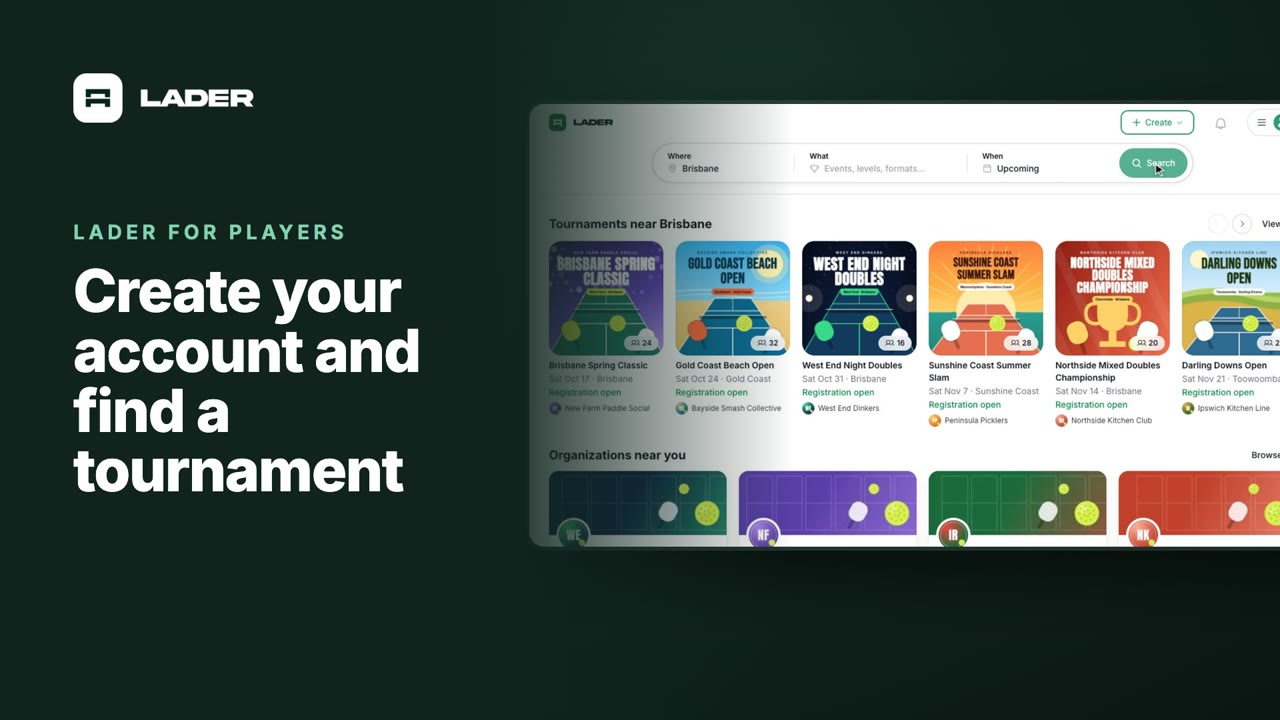
Create your account and find a tournament
Sign up with your email, add the details that decide which divisions you can enter, and find tournaments near you.
 0:58
Video 2
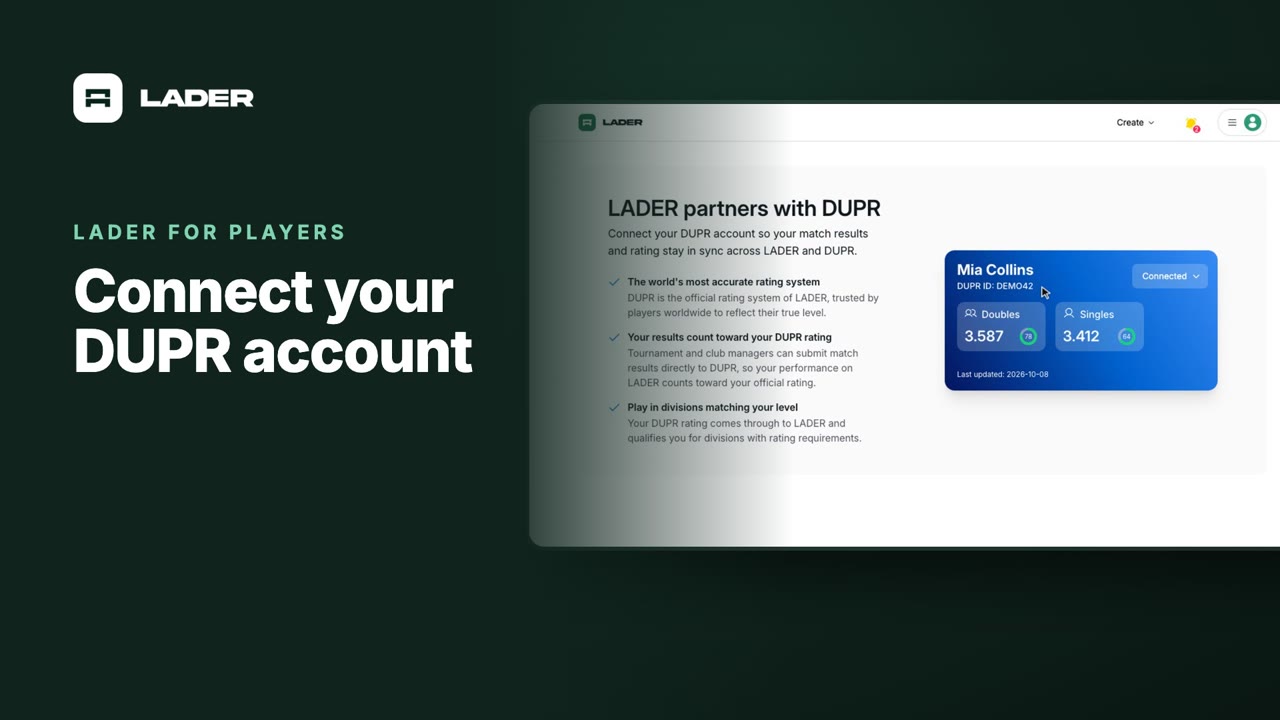
Connect your DUPR account
Connect DUPR so your ratings come through to LADER, and see which divisions of a DUPR-rated tournament you can enter.
 1:36
Video 3
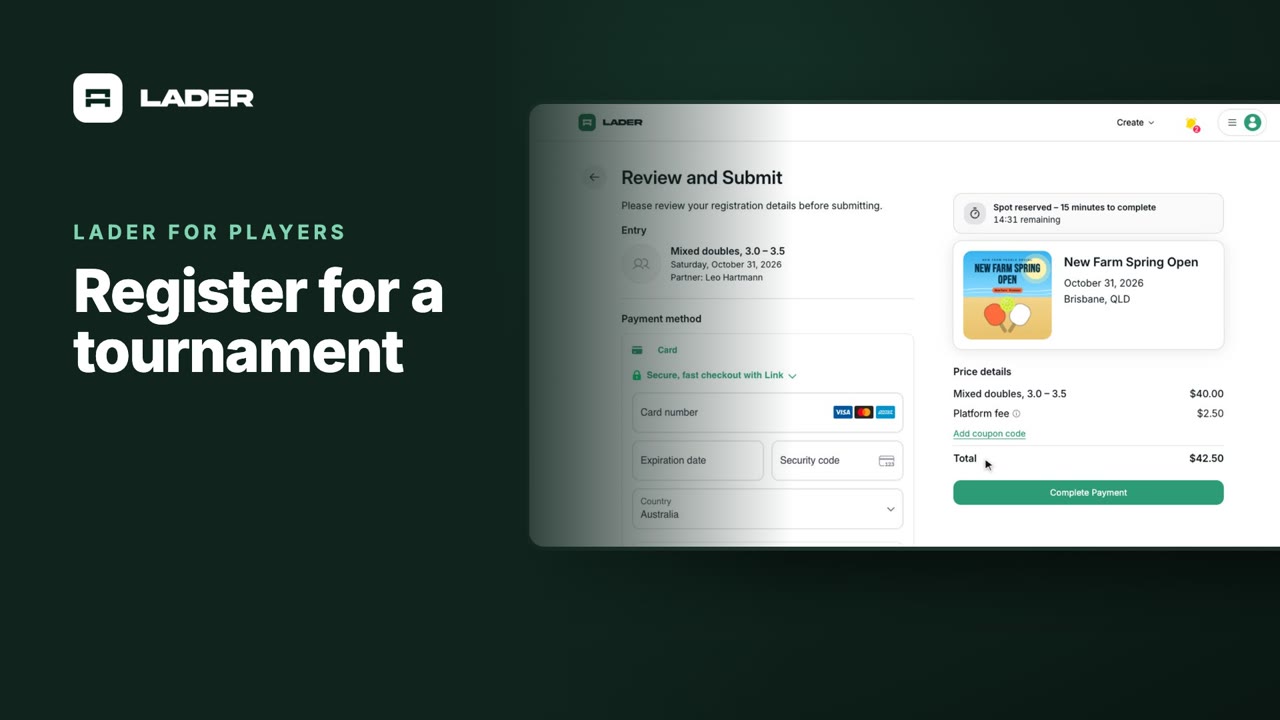
Register for a tournament
Choose your divisions, invite your partner, answer the organizer’s questions, sign the waiver and pay.
 1:07
Video 4
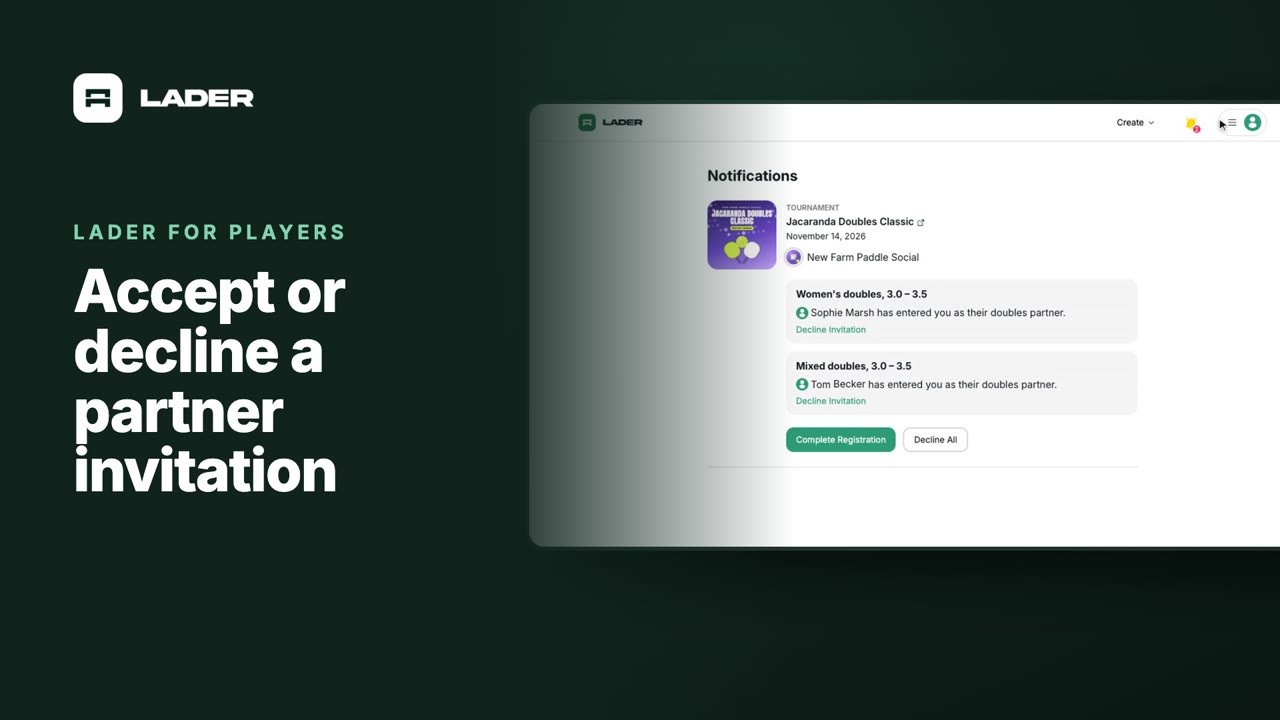
Accept or decline a partner invitation
When a partner enters you in a division, accept from your notifications, complete your details and pay your share, or decline.
 1:01
Video 5
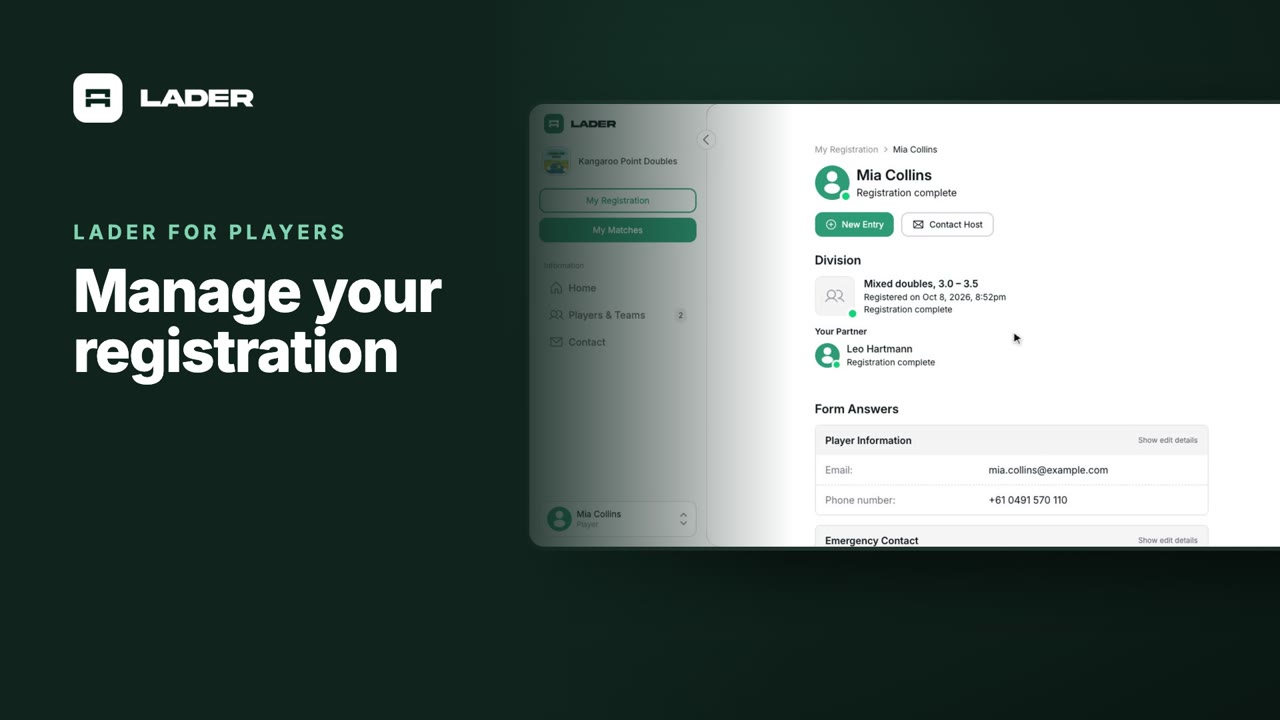
Manage your registration
See your entry’s status and partner, edit your answers, check waivers and payments, and contact the organizer.
 1:31
Video 6
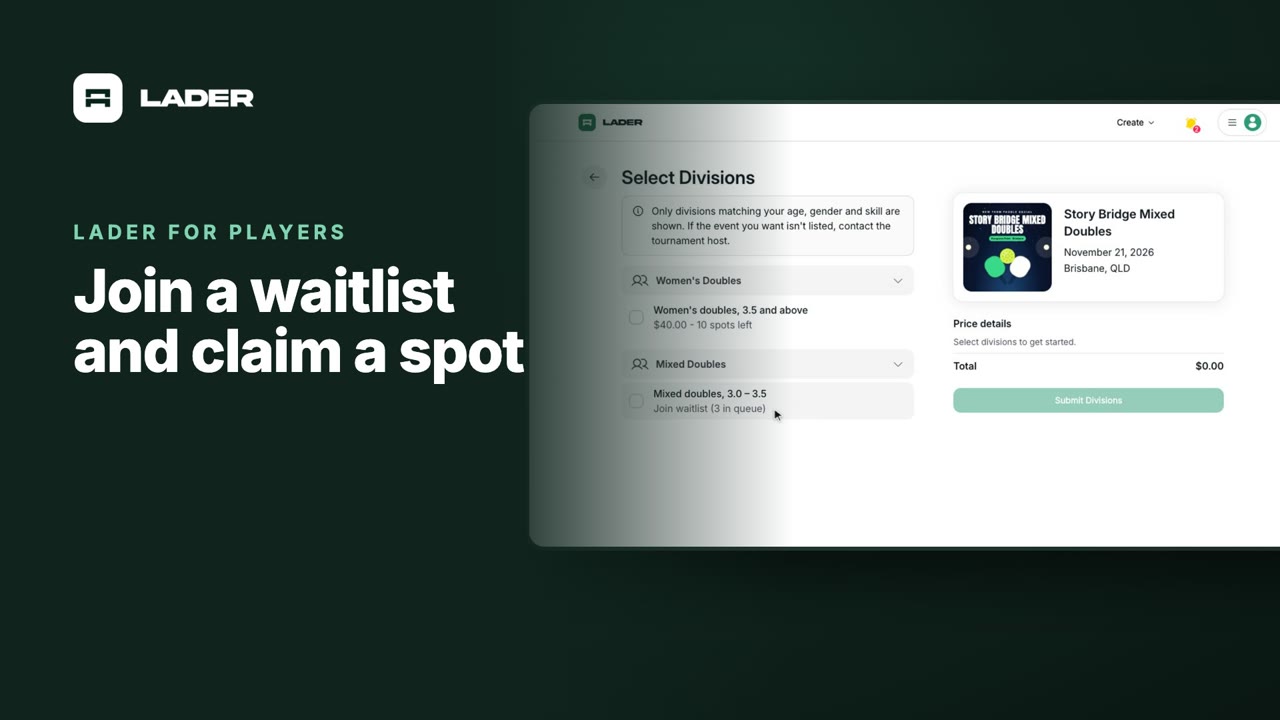
Join a waitlist and claim a spot
Join the waitlist for a full division for free, then claim your spot and pay when one opens up.
 0:55
Video 7
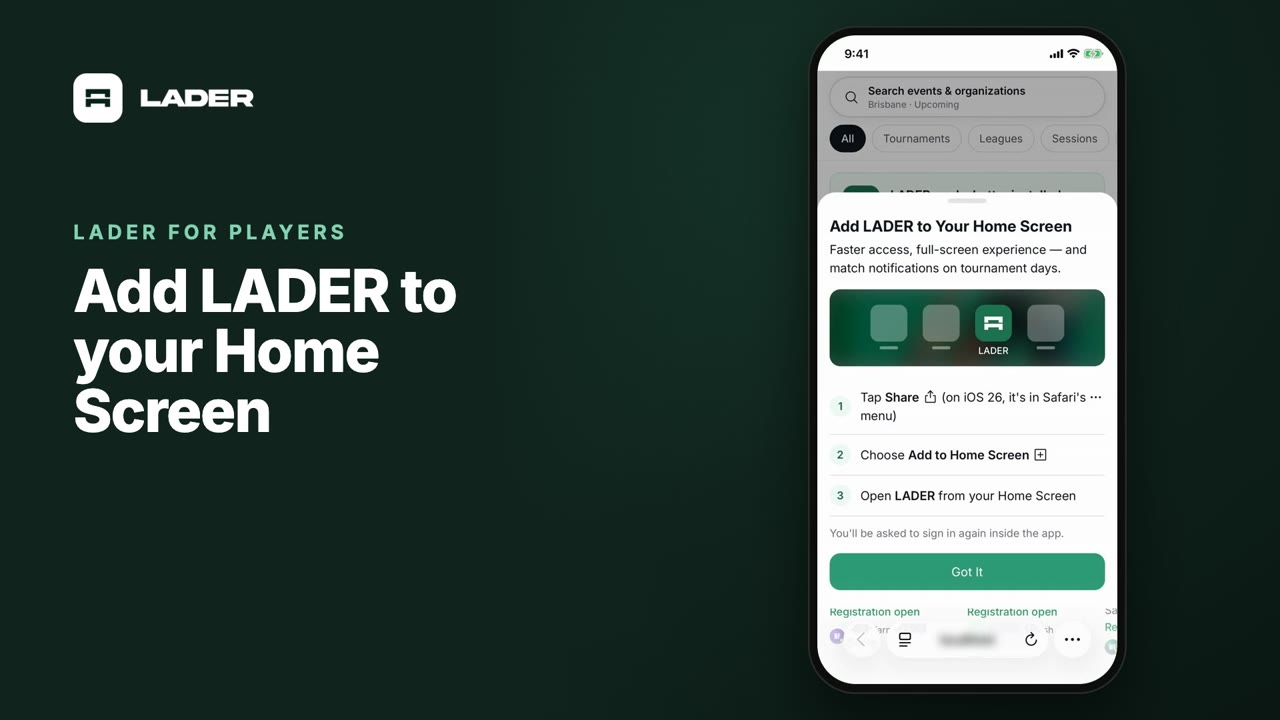
Add LADER to your Home Screen
Install LADER from Safari so it opens full screen from its own icon, like an app.
 0:37
Video 8
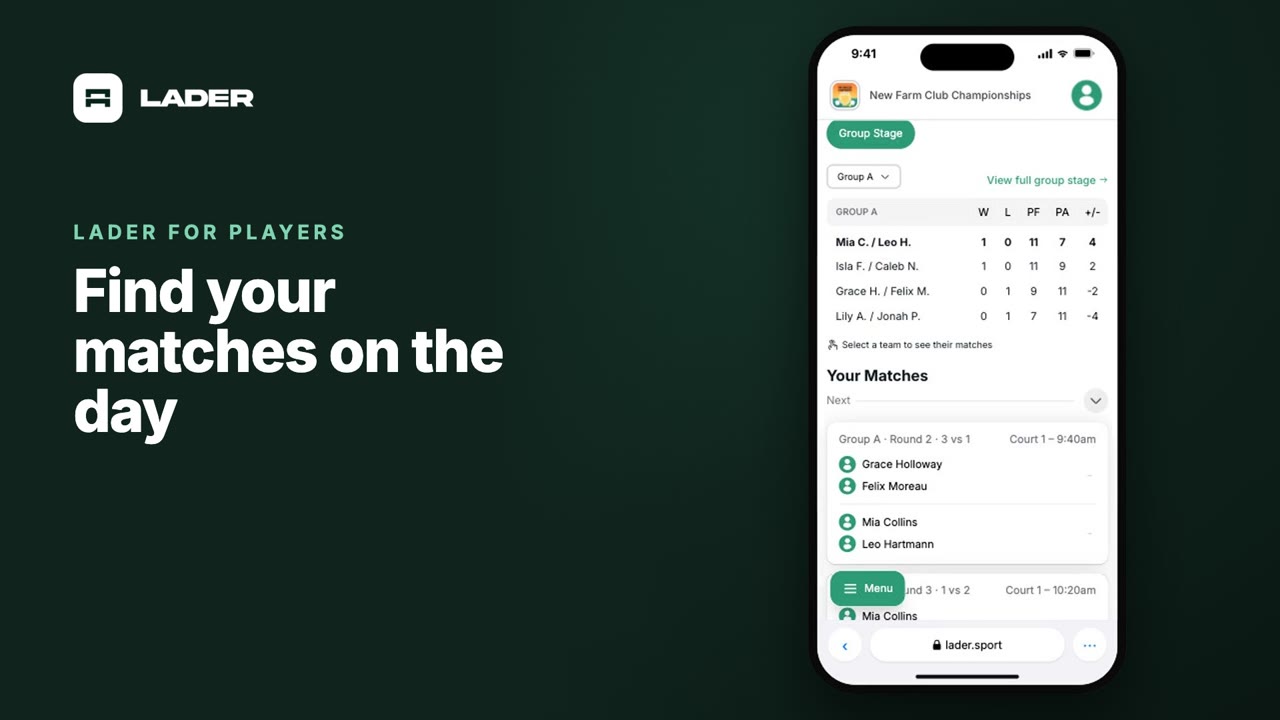
Find your matches on the day
Open My Matches to see your next match, its court and time, your schedule and the standings.
 0:44
Video 9
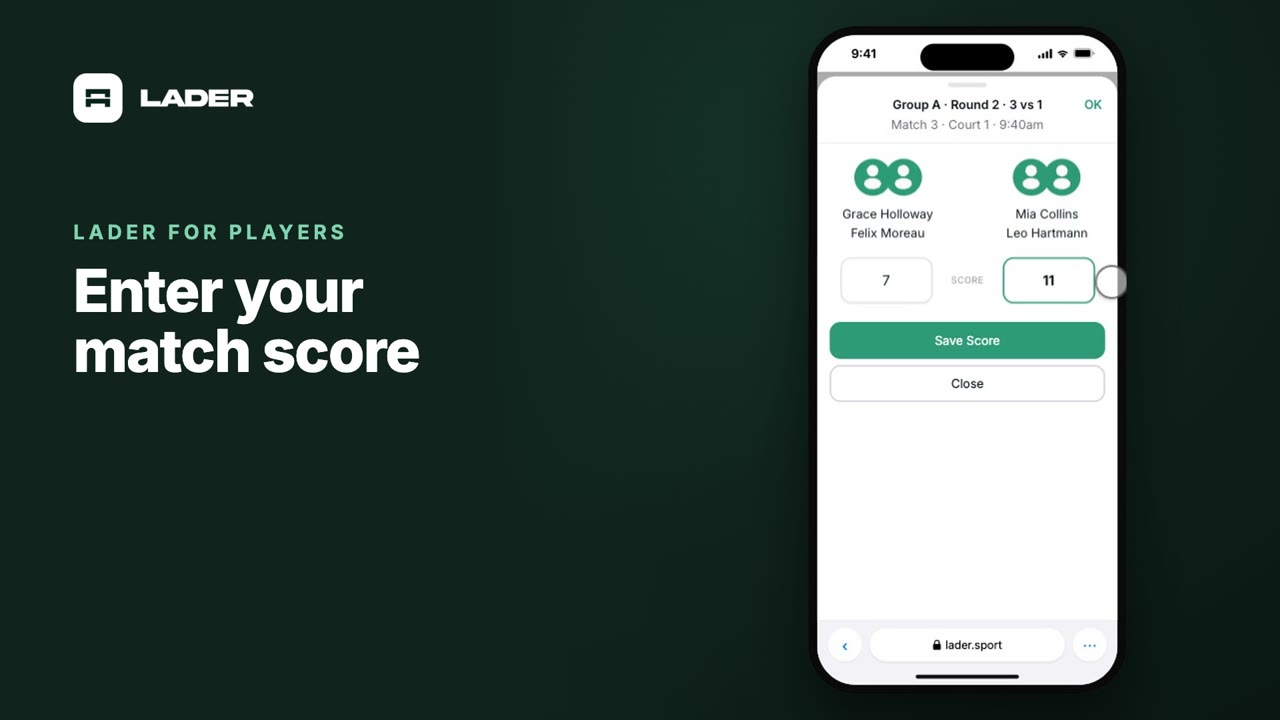
Enter your match score
Enter the score of your match from your phone and save it, and see the standings update.
Leagues
For organizers
Run a league
Run a pickleball league on LADER: create the league and set its roles, add players, schedule the season’s sessions, run a weekly session seeded from the league ranking, and set up the ranking. Watch the full walkthrough or jump to the part you need.
Watch the full walkthrough (7:15)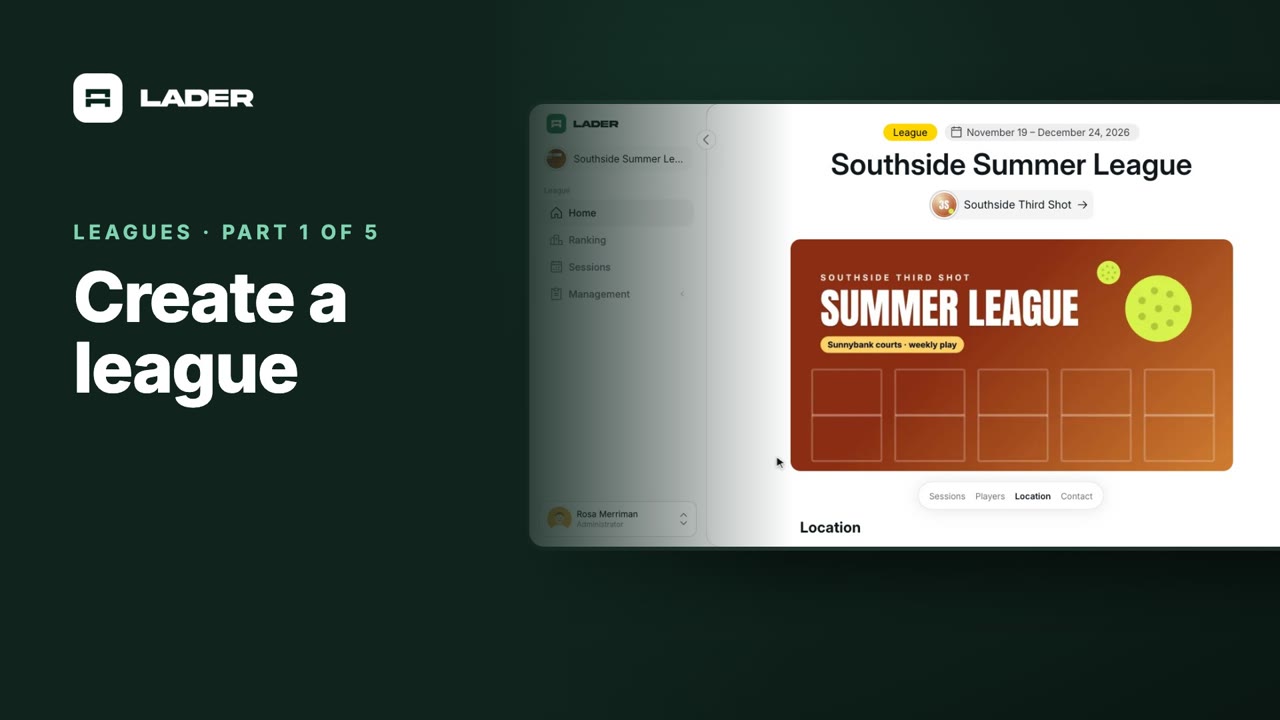 1:59
Part 1
Create a league
Create a league for your organization: name, season dates, location, cover image and contact details. Then add roles, and set player score reporting before you schedule sessions.
 1:15
Part 2
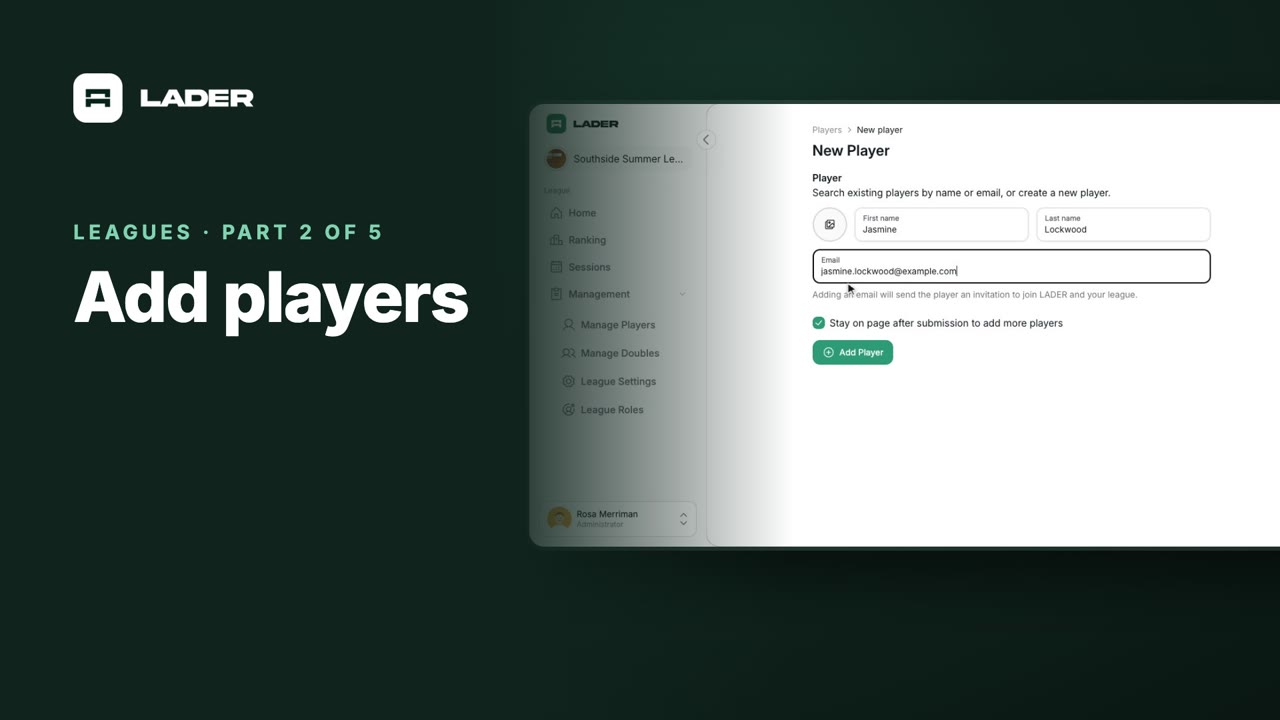
Add players
Add players to your league: pick players your club already has, or add someone new with an email so they’re invited to link their account.
 1:02
Part 3
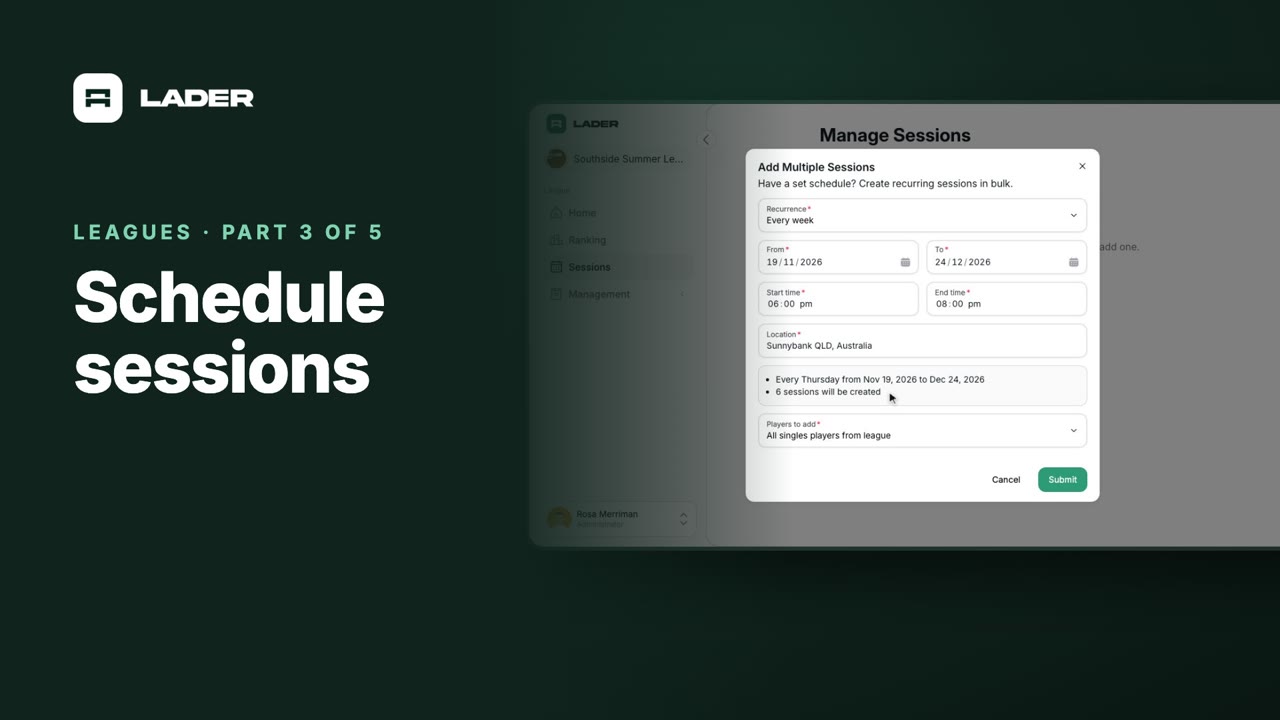
Schedule sessions
Create the season’s weekly sessions in one go with Add Multiple, copy in the league’s players, and add or move single sessions.
 1:54
Part 4
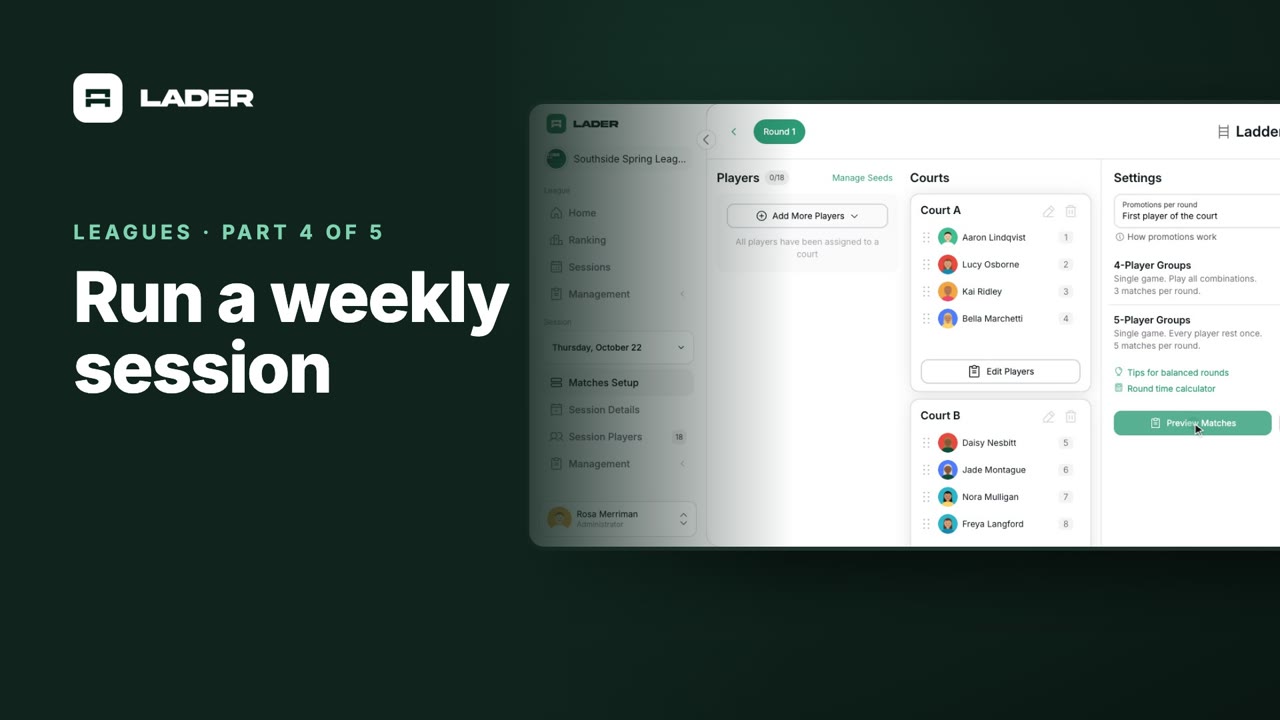
Run a weekly session
Run this week’s session: bring in players who joined the league late, choose a Ladder, seed it from the league ranking, and publish the matches.
 1:08
Part 5
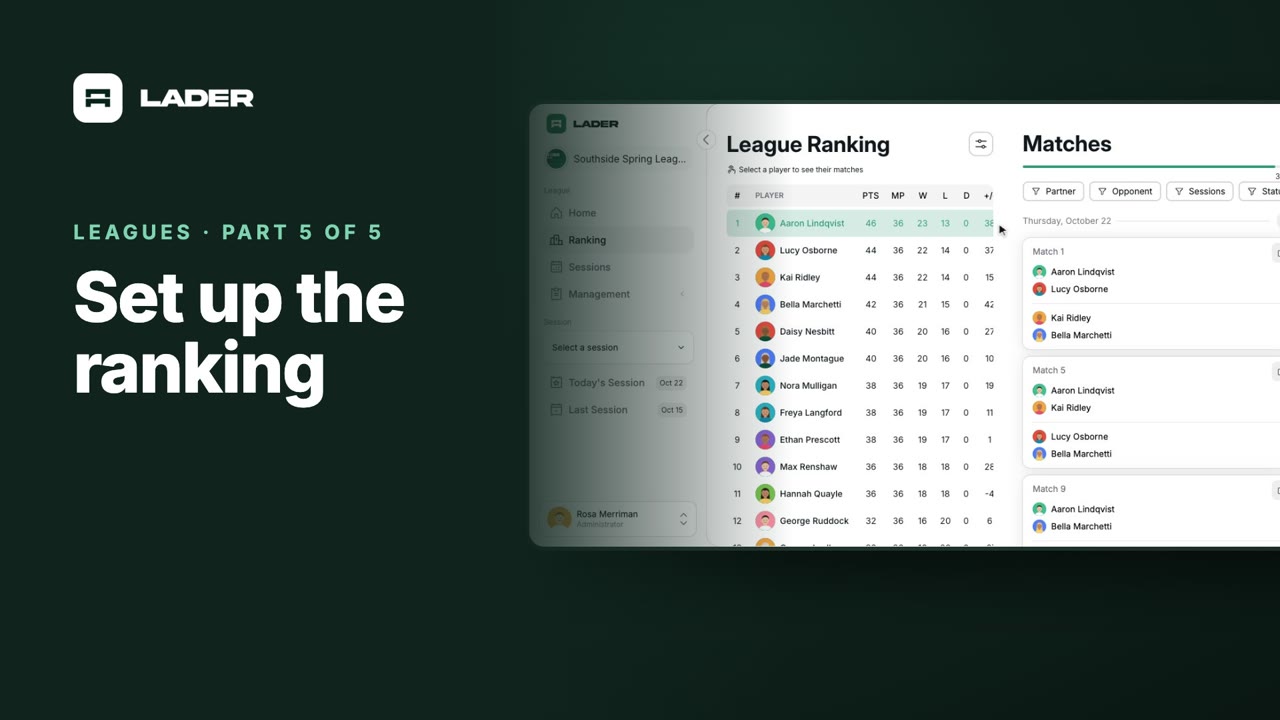
Set up the ranking
Read the league ranking, change its columns, tie-breakers and points, and see each player’s matches across the season.
Fixed pairs in leagues
Run a fixed-pairs league on LADER: add doubles pairs to your league, bring them into your sessions, and follow the Pairs and Singles rankings, then seed your next Groups session from them.
 1:16
Video 1
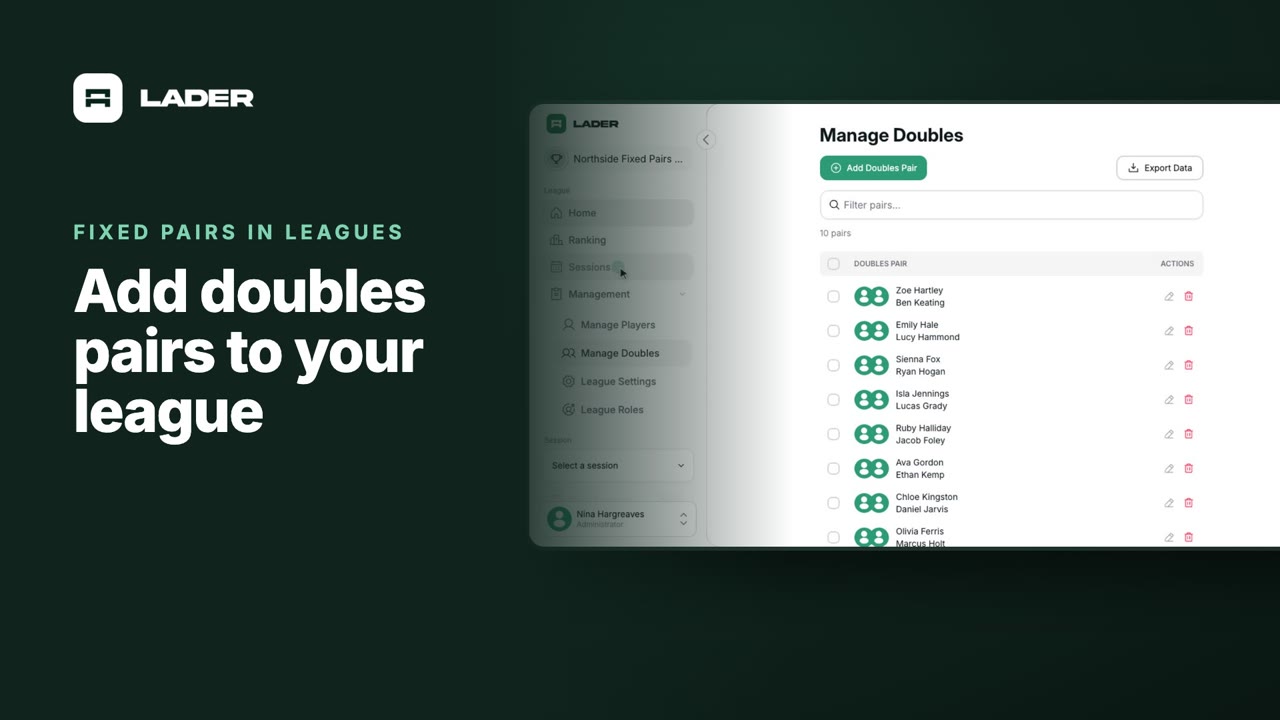
Add doubles pairs to your league
Add fixed doubles pairs to your league, from Manage Doubles or from two players on Manage Players, and bring them into your sessions.
 1:17
Video 2
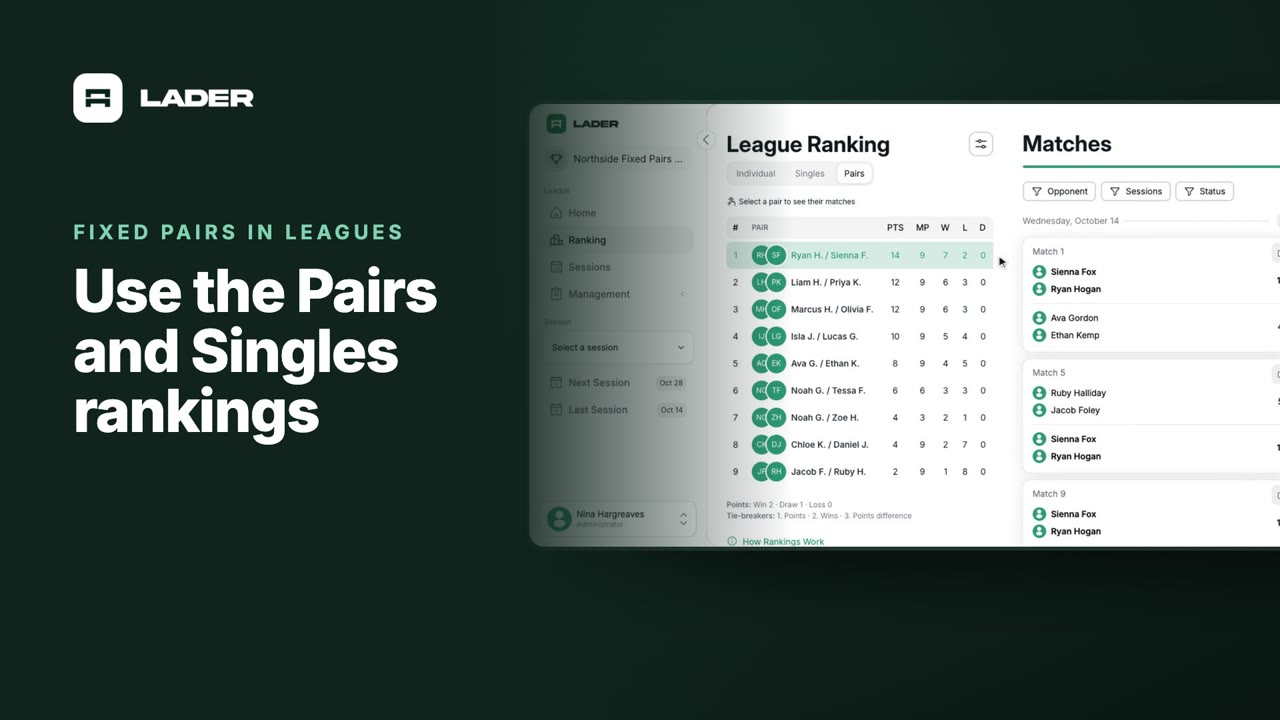
Use the Pairs and Singles rankings
Switch between the Individual, Singles and Pairs tables, see a pair’s matches, change each table’s settings, and seed a Groups session from the Pairs ranking.
For players
Play in a league or session
Short phone videos for pickleball players in a league or session on LADER: accept your invitation, find your session matches, enter your score, and check your league ranking.
 1:04
Video 1
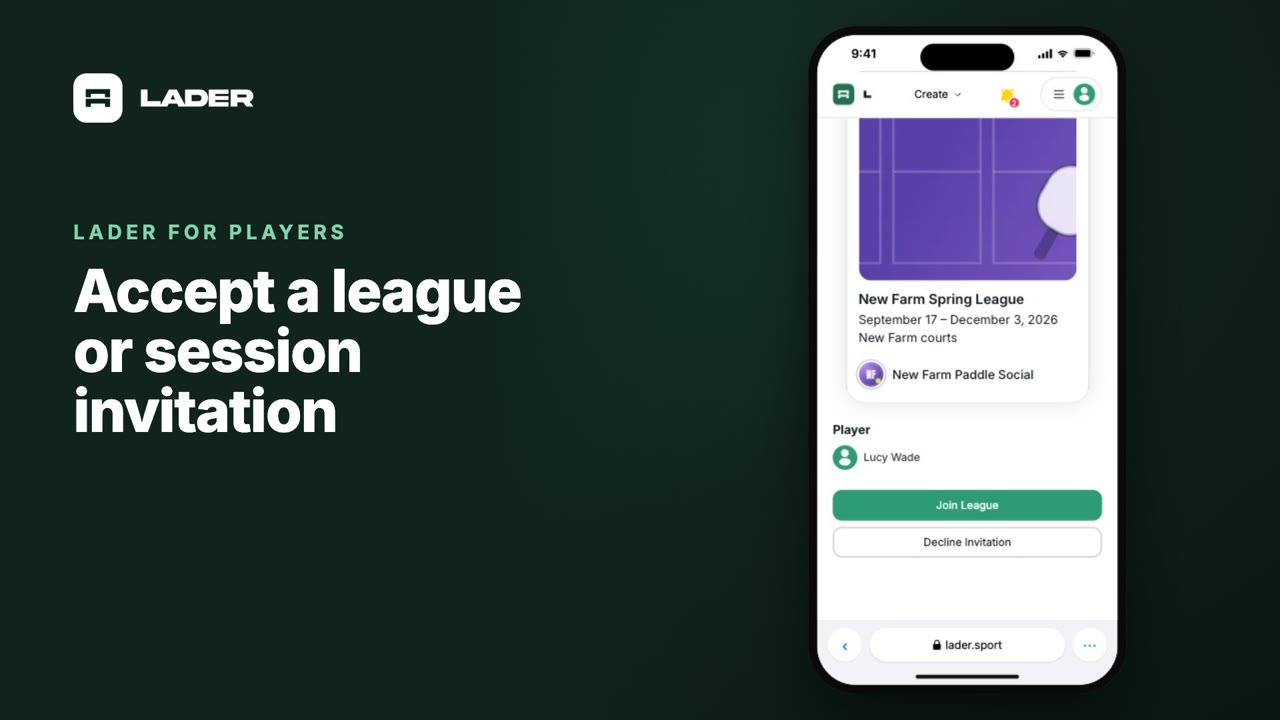
Accept a league or session invitation
Open your invitation, tap Join League or Join Session, and find the rest of your invitations in your notifications.
 0:58
Video 2
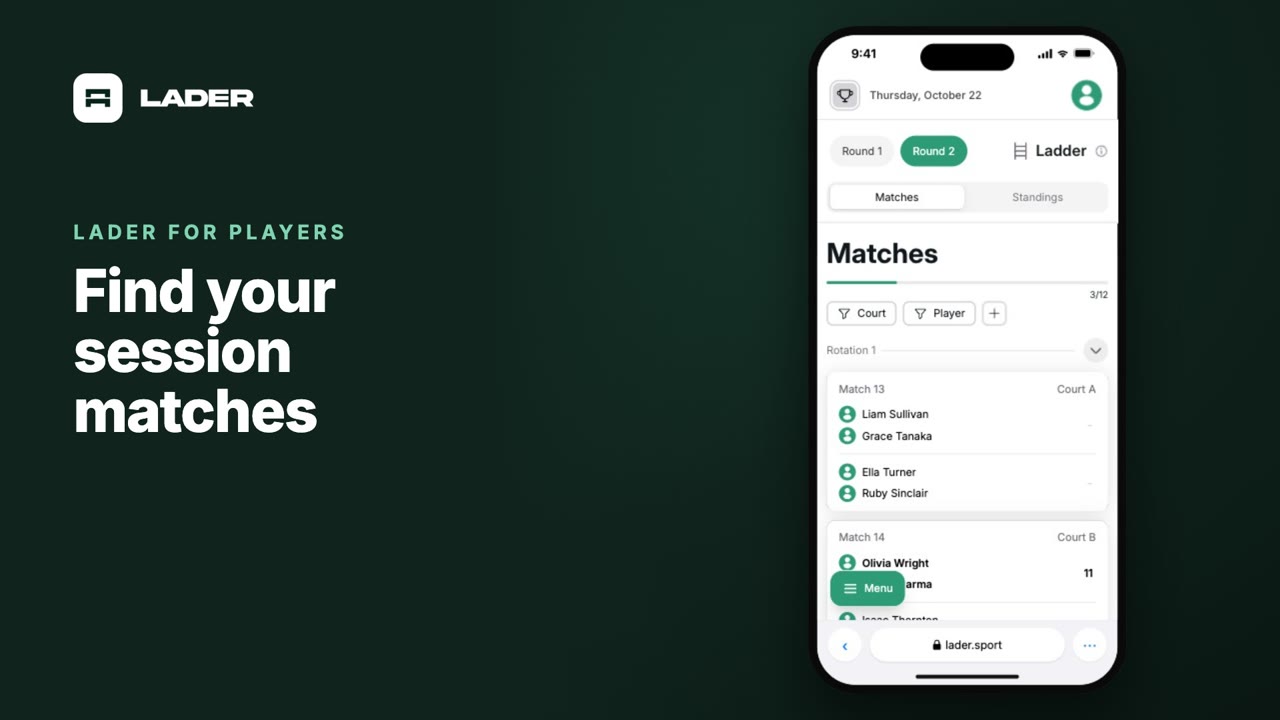
Find your session matches
Open today’s session, find your matches with the Player filter, and check the session standings and details.
 0:47
Video 3
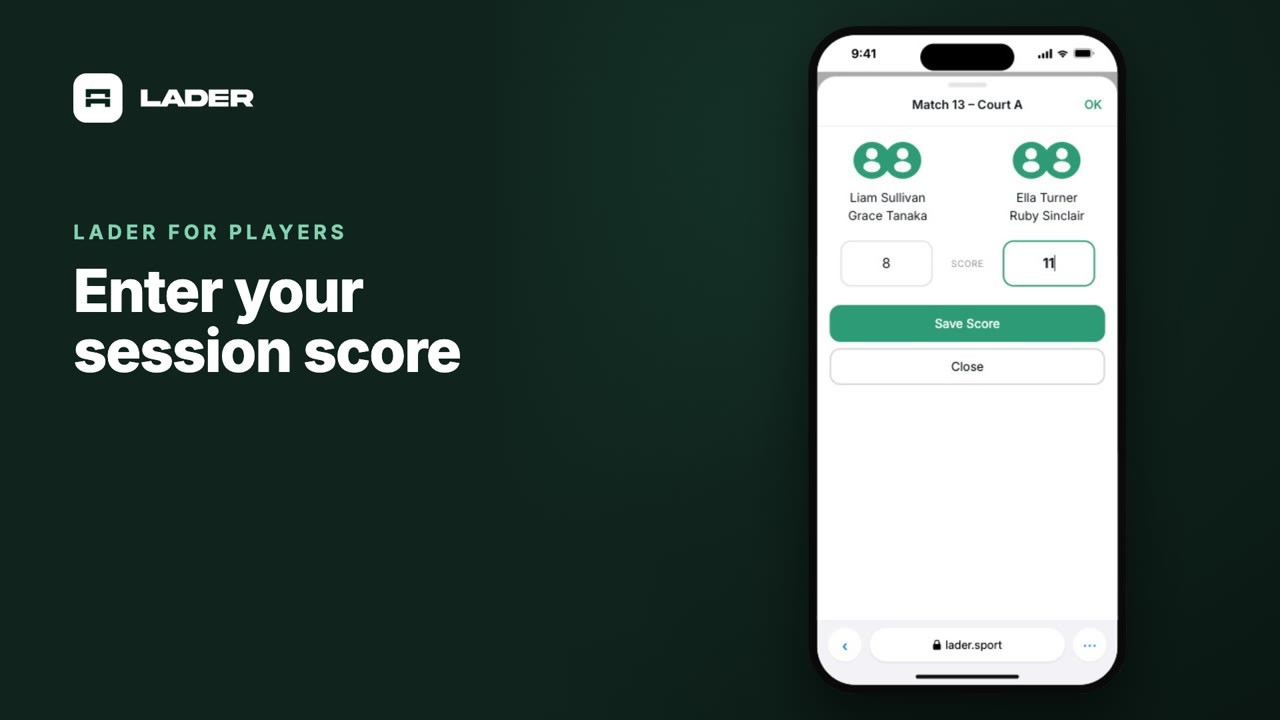
Enter your session score
Tap your match, enter the score and tap Save Score, and see the session standings update.
 0:49
Video 4
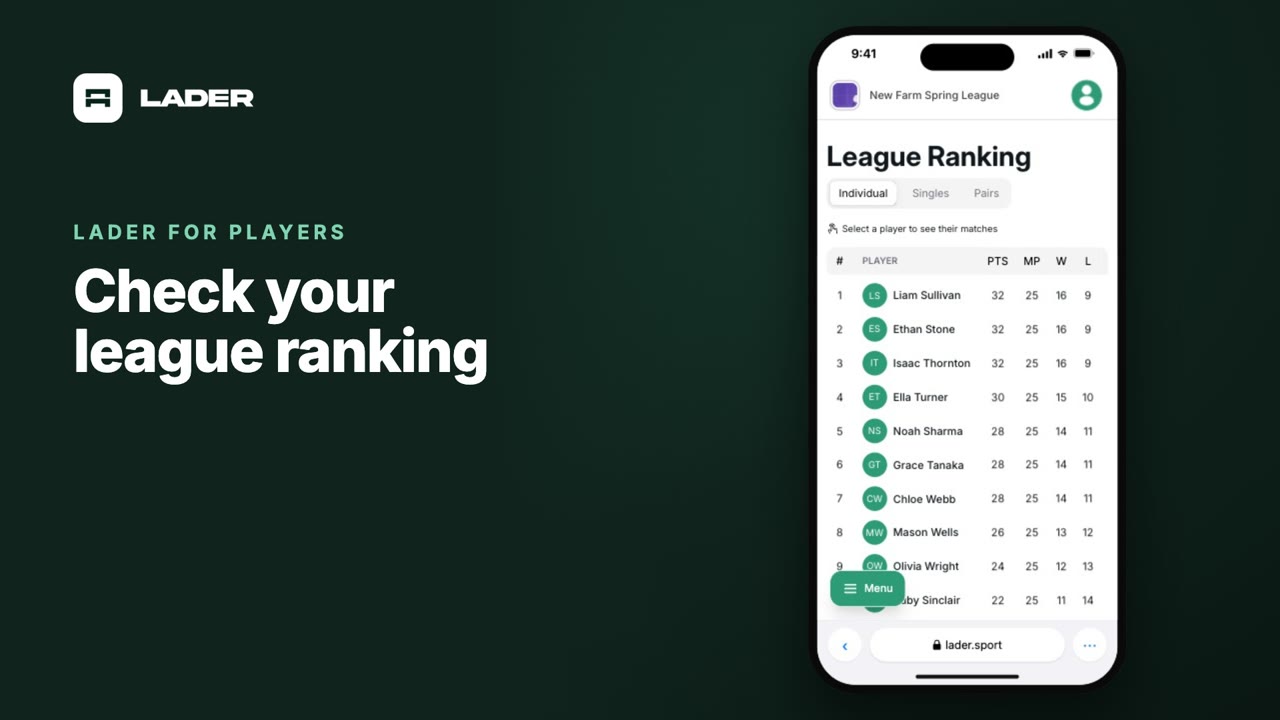
Check your league ranking
Open your league’s ranking, switch between its tables, and see every match behind your place.
Sessions
For organizers
Run a session
Run a pickleball session on LADER, from setup to scores: create the session, add your players, run Random Matchups, enter and lock scores, and run a Ladder. Watch the full walkthrough or jump to the part you need.
Watch the full walkthrough (6:24)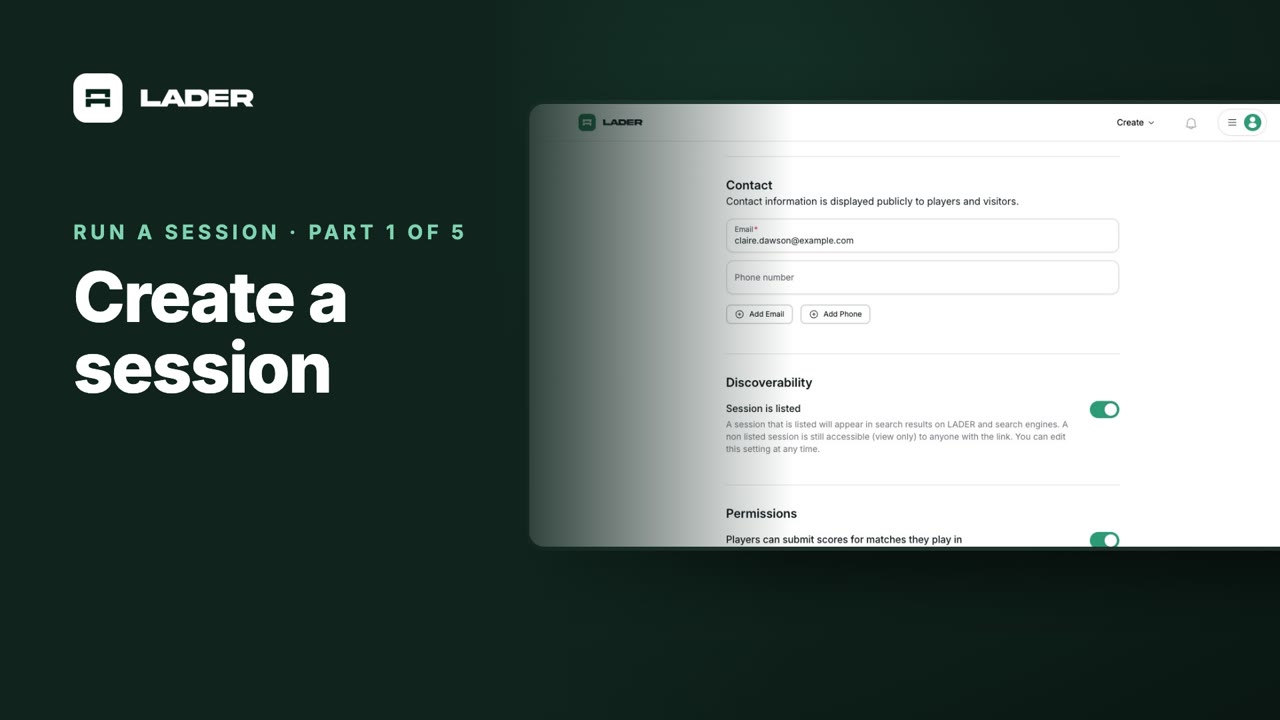 1:17
Part 1
Create a session
Create a session for your organization: its name, location, dates and times, cover image, description and contact details, and whether players can enter their own scores.
 1:09
Part 2
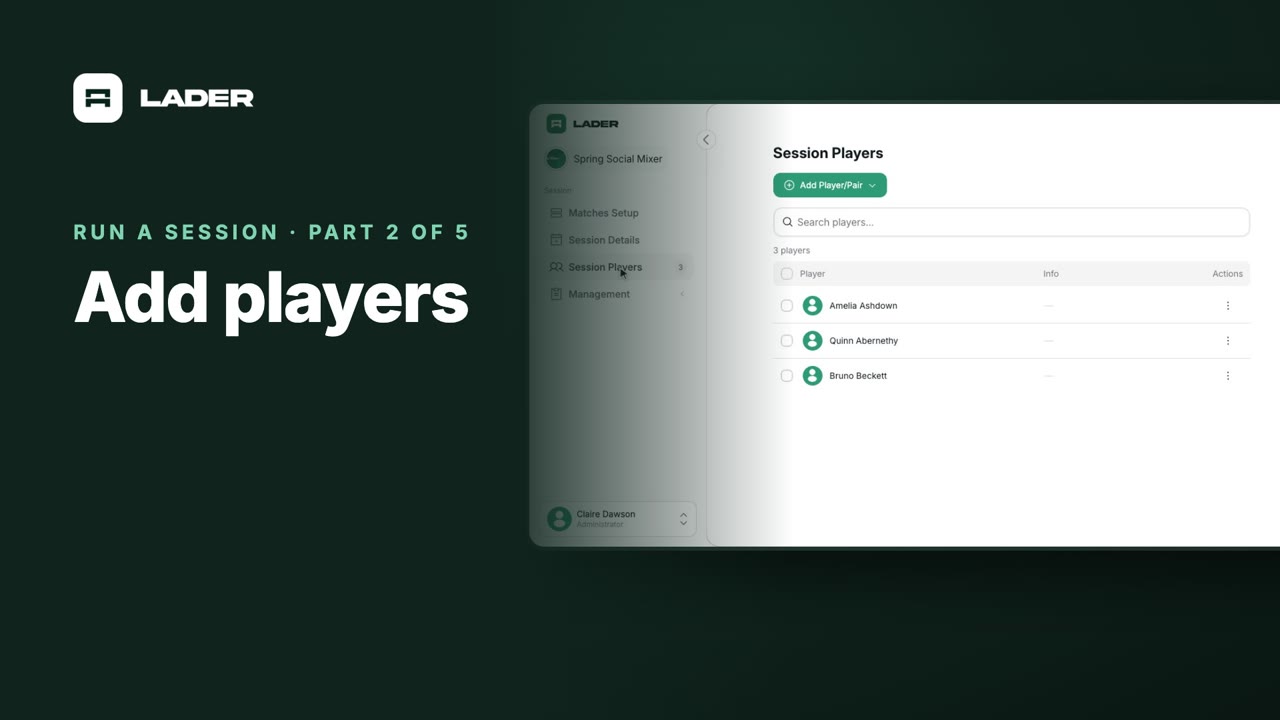
Add players
Add players to your session: find people who have played with your club, or add someone new and invite them by email.
 1:21
Part 3
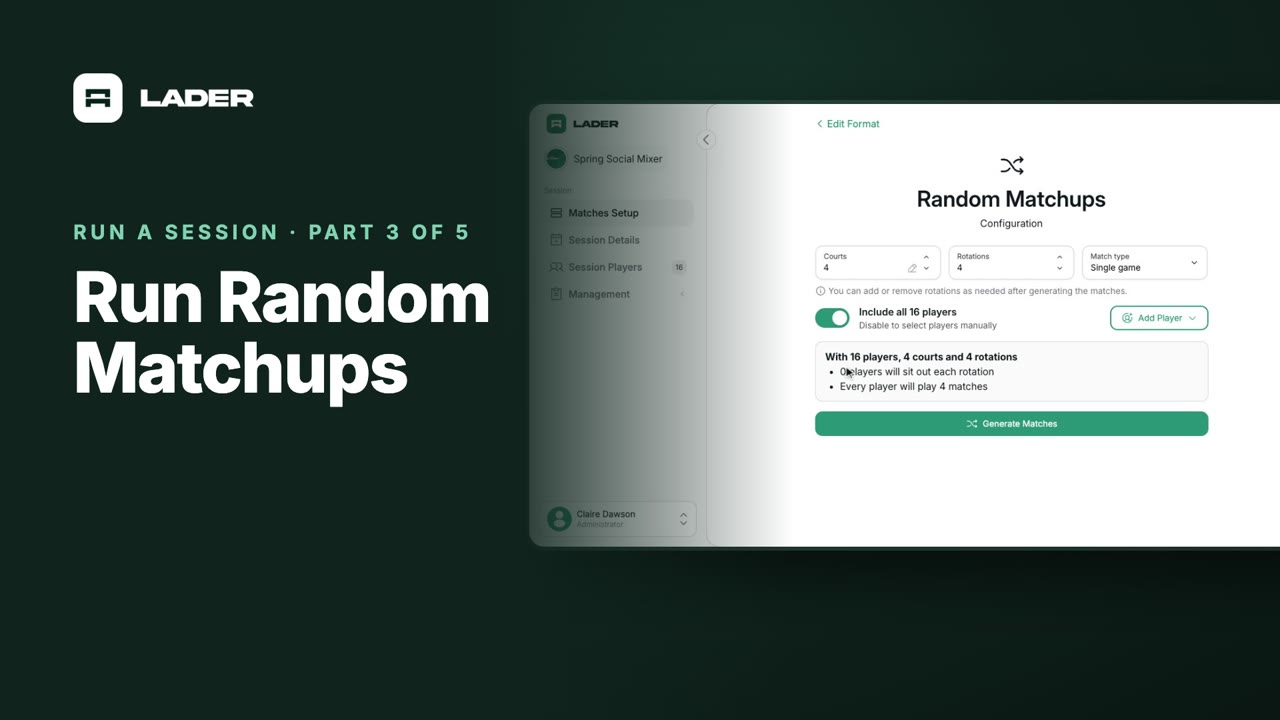
Run Random Matchups
Set up Random Matchups: choose your courts and rotations, generate the matches, check them in preview, publish them, and add rotations as you go.
 0:48
Part 4
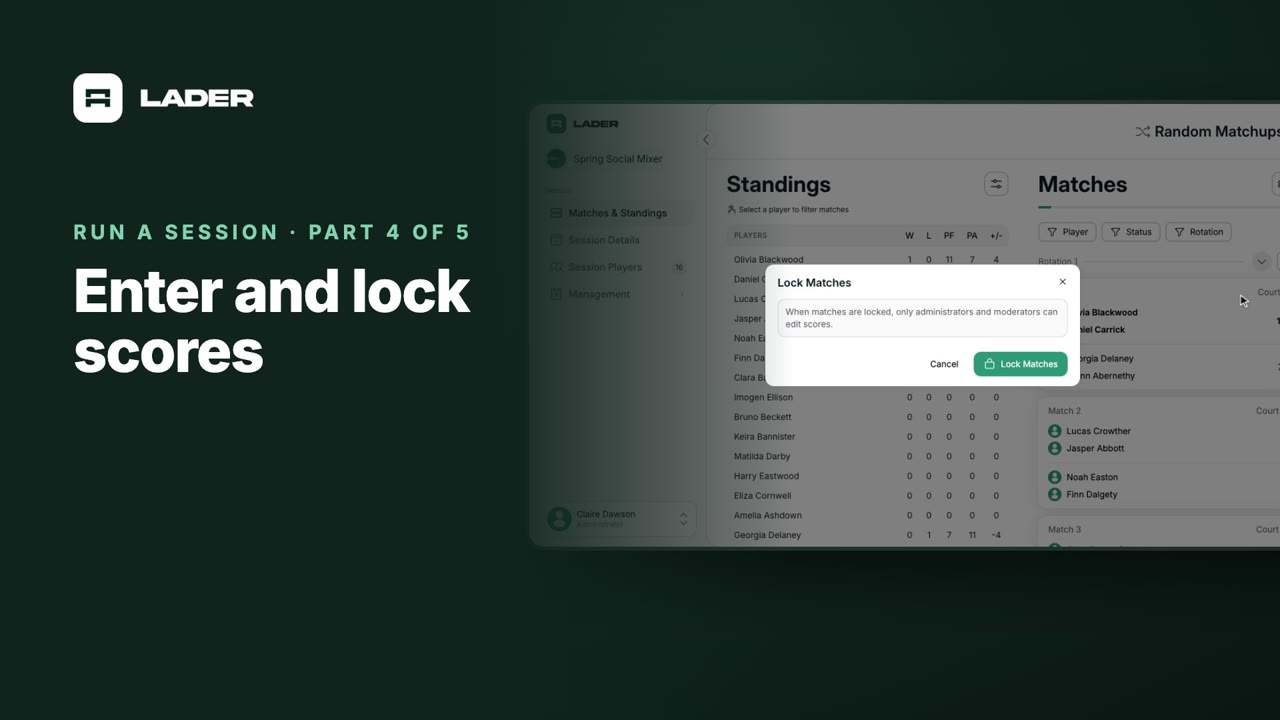
Enter and lock scores
Enter scores from the match cards, watch the standings update, filter the matches, and lock them when play is over.
 1:49
Part 5
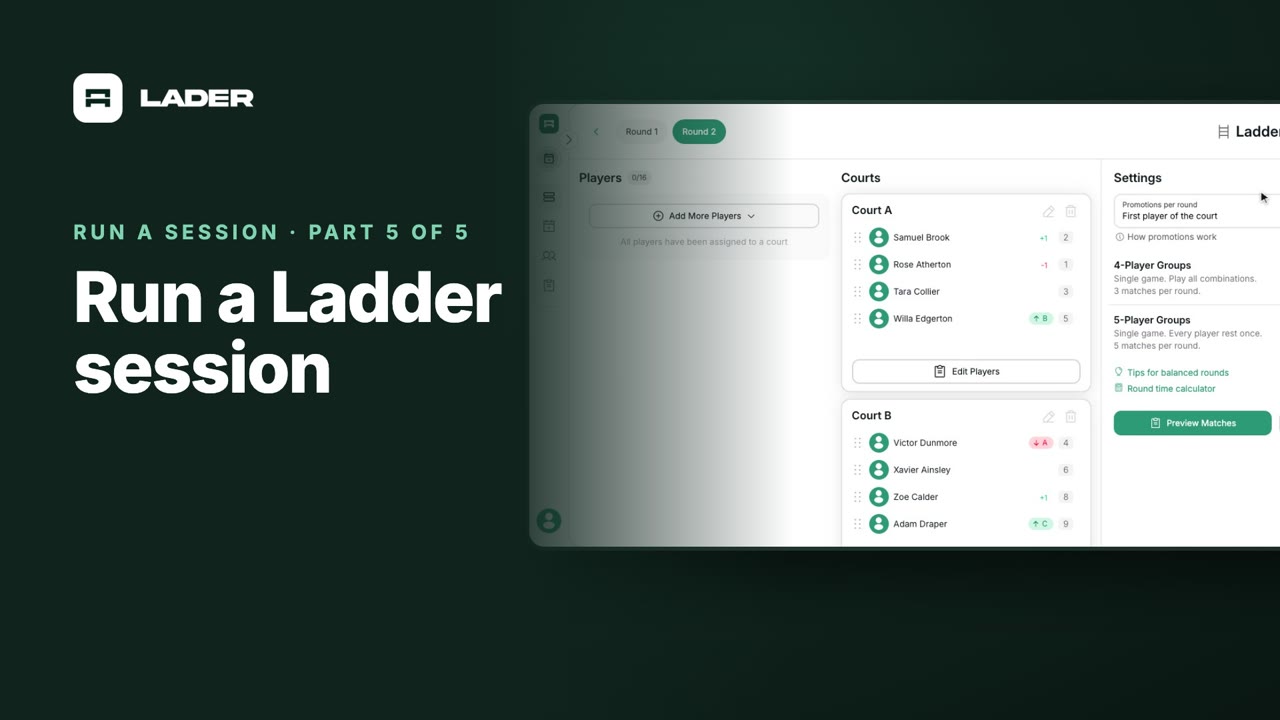
Run a Ladder session
Set up a Ladder: add courts, seed players by DUPR rating, place them by seed, publish the round, then add rounds as winners move up and losers move down.
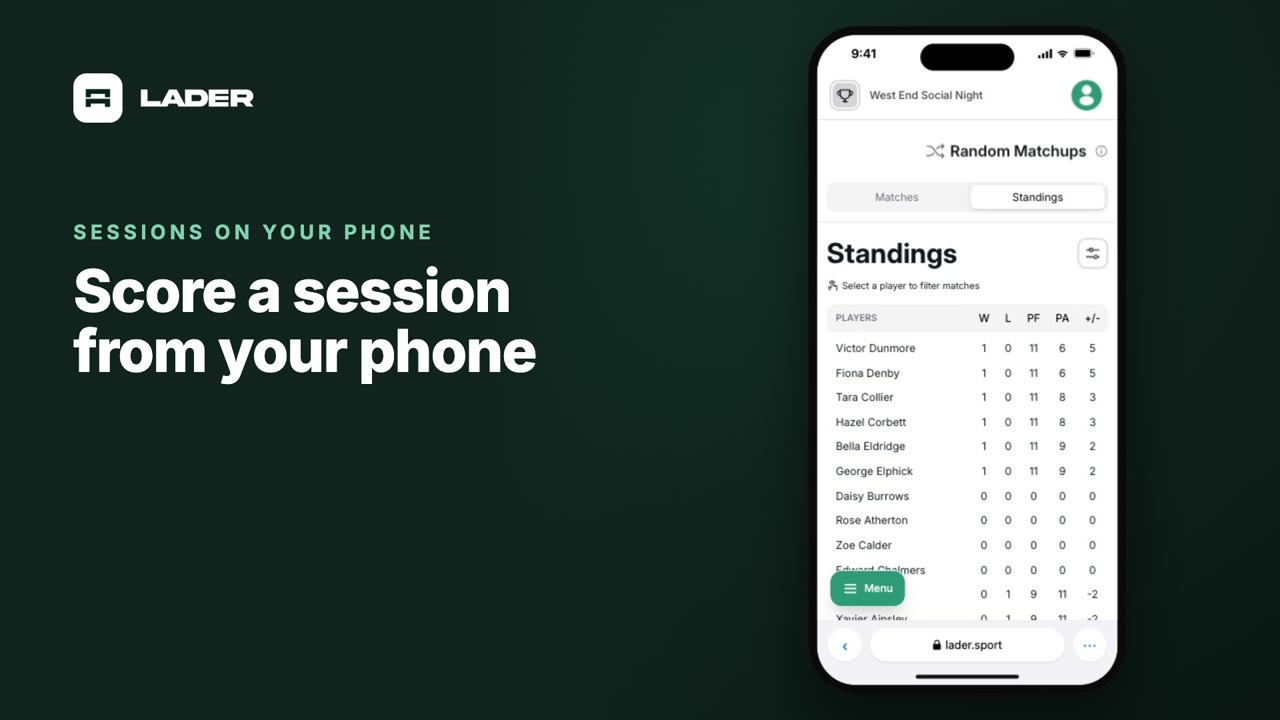
Score a session on your phone
Run your session from the side of the court: enter scores on your phone, check the standings, and lock the matches when play is over.
Run Groups
Run the Groups format in a LADER session: small round-robin groups of fixed pairs or singles players, with courts called automatically as results come in. Set up the groups, choose the format and courts, publish, and edit the groups during play.
 1:44
Video 1
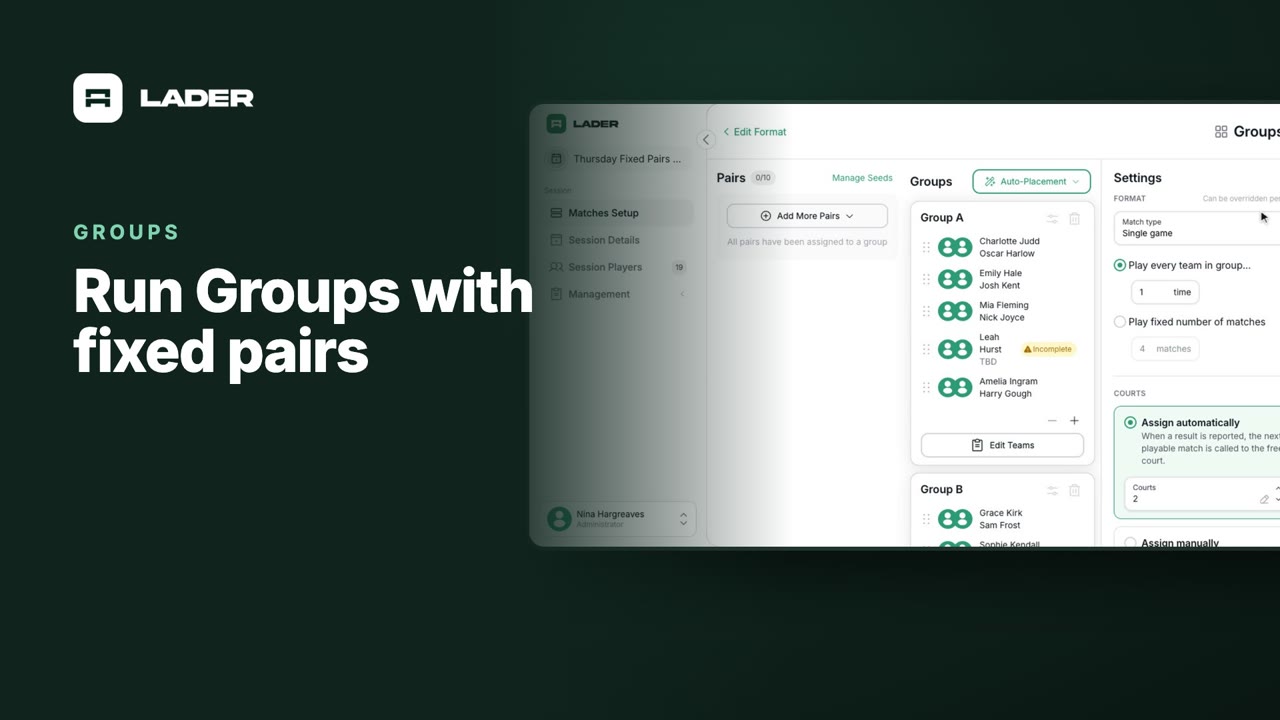
Run Groups with fixed pairs
Choose Fixed pairs and Groups, build the groups, set the format and courts, then generate and publish the matches.
 0:51
Video 2
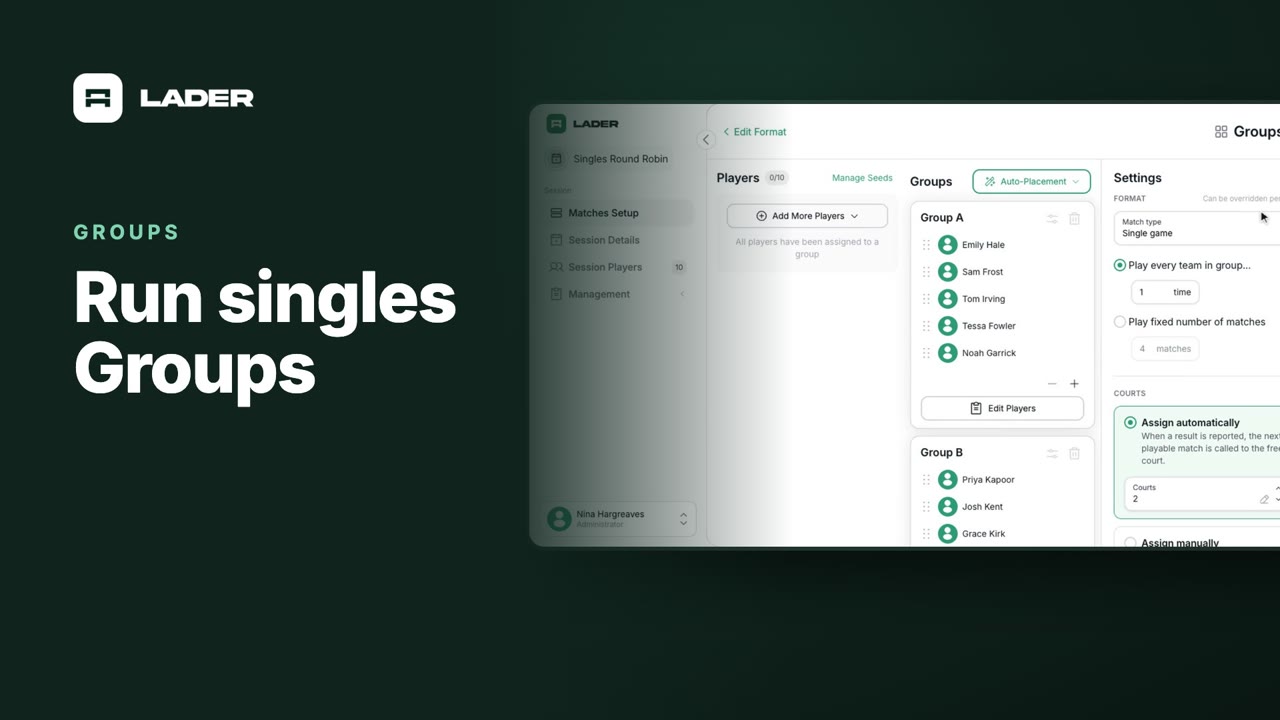
Run singles Groups
Choose Singles and Groups, and build the groups from players instead of pairs. Each group needs two or more players.
 1:21
Video 3
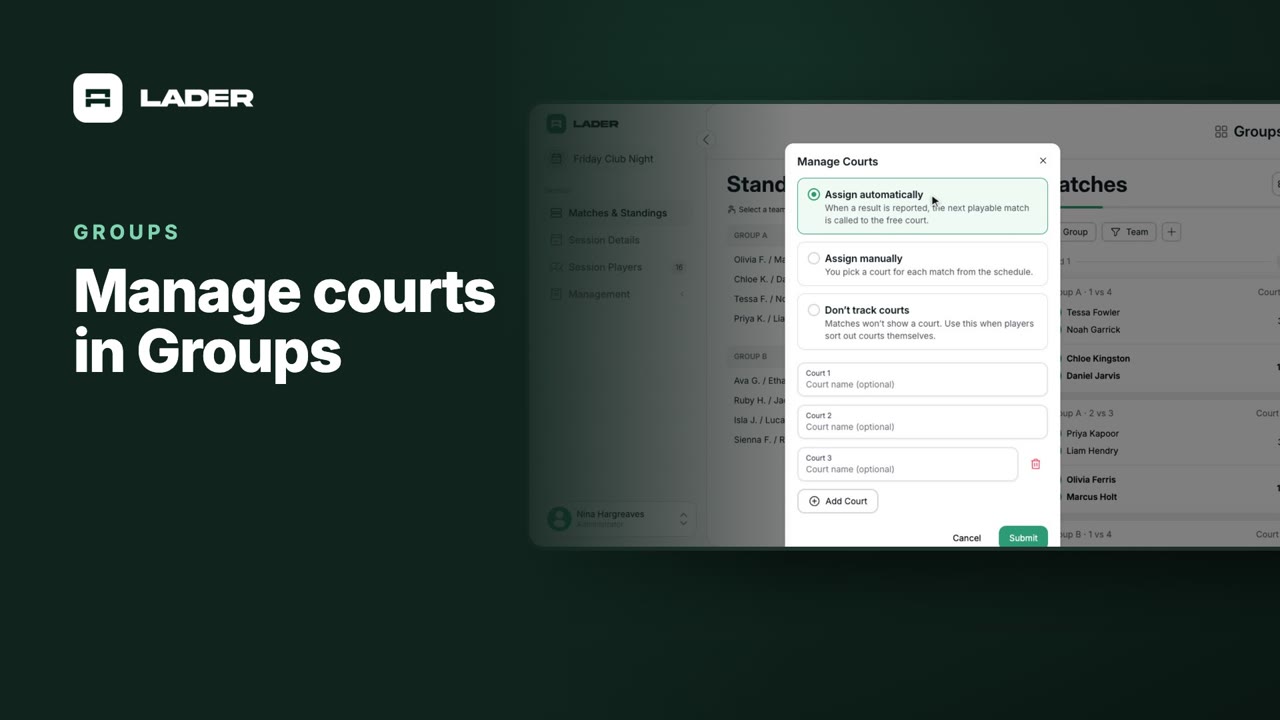
Manage courts in Groups
Choose how courts are given out: automatically as results come in, by hand, or not at all. Set a court for a match yourself when you need to.
 0:53
Video 4
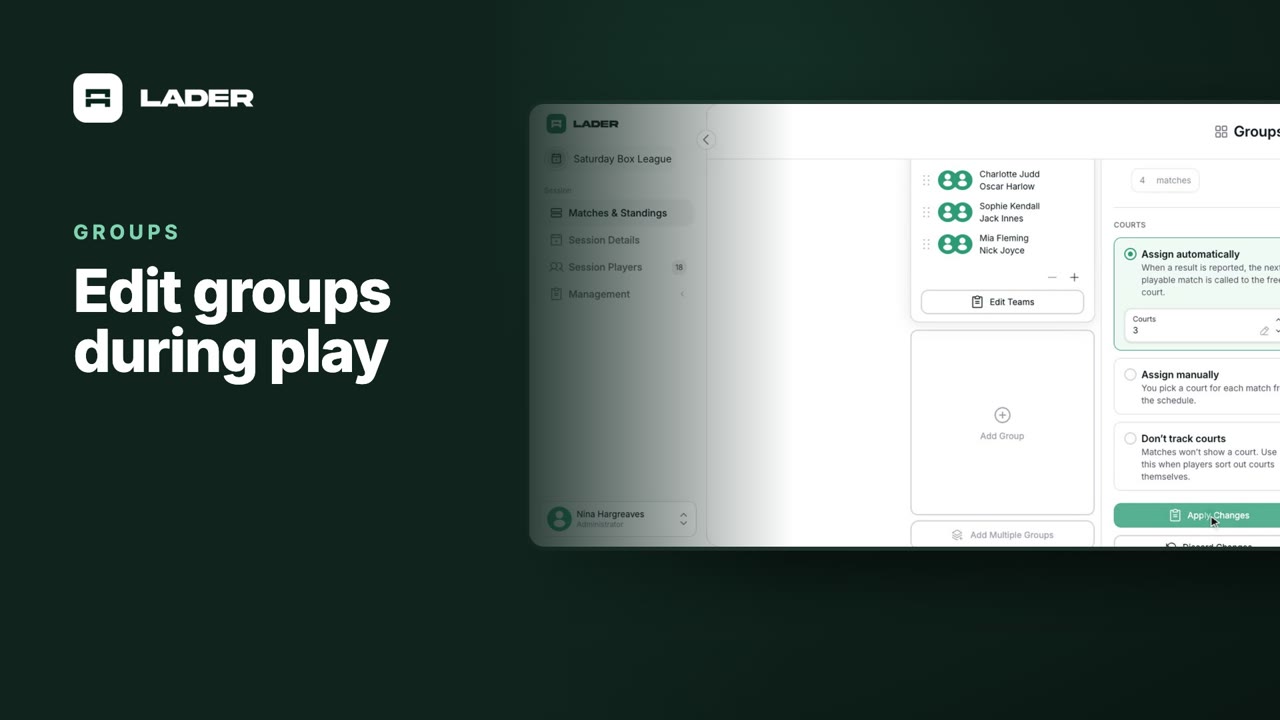
Edit groups during play
Reopen the group setup while matches are under way, make a change and apply it. Matches already played are kept.
Prefer to read?
Step-by-step written guides with screenshotsStill stuck?
Send us a message and we will walk you through it, or book a demo and we will show you live.
Playing in a tournament, league or session? Read the Player FAQ, or ask its organizer: their contact details are in the Contact section of its page.